


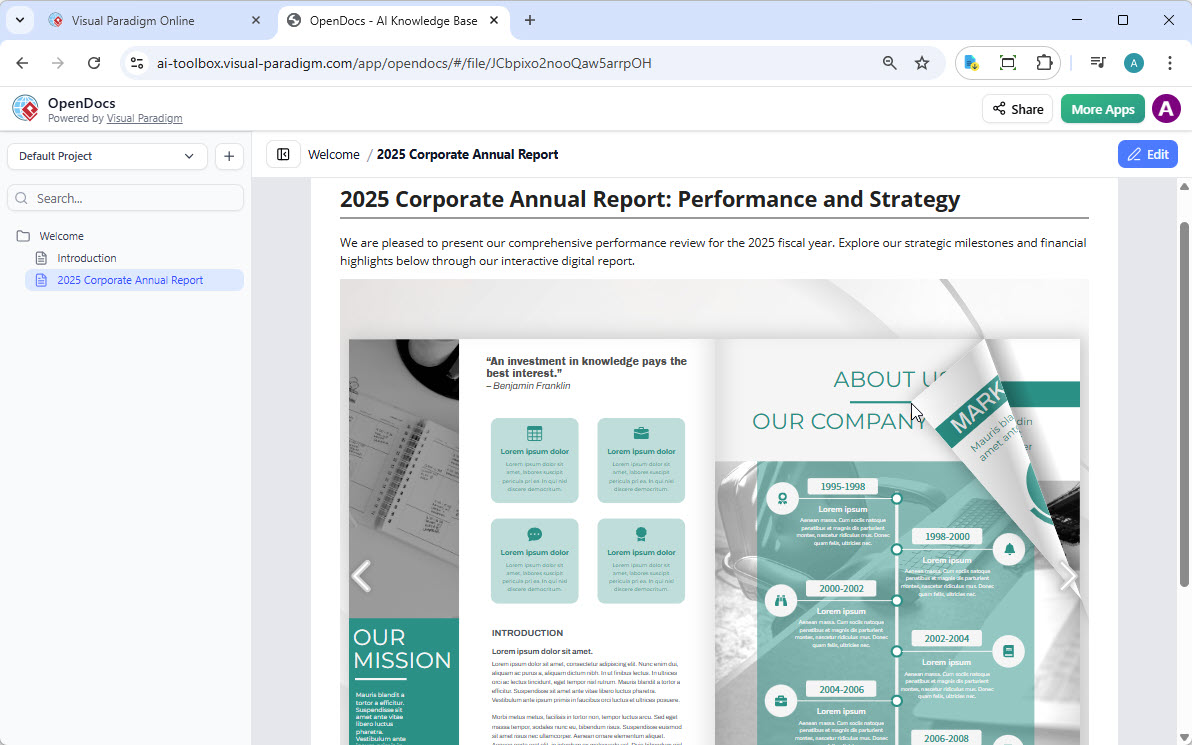
Transform your documentation from static pages into immersive, interactive experiences. This comprehensive guide walks you through the new integration between Visual Paradigm Online’s flipbook tools and OpenDocs, enabling you to share dynamic publications directly within your knowledge base.
🔍 Understanding the Visual Paradigm Ecosystem
Before diving into the workflow, let’s clarify the core components that power this integration:
Core Relationship
| Component | Purpose | Key Capabilities |
|---|---|---|
| Fliplify (Flipbook Maker) | Specialized tool within Visual Paradigm Online | Convert PDFs, Word docs, and PPTs into interactive 3D flipbooks with realistic page-turning effects, AI-powered content generation, and multimedia embedding |
| Digital Bookshelf | Central organizational hub | Drag-and-drop multiple flipbooks onto customizable virtual shelves; curate collections by theme, project, or audience |
| OpenDocs | AI-powered documentation & knowledge base platform | Embed flipbooks and bookshelves via the secure “Pipeline”; treat interactive content as living artifacts with real-time collaboration |
In the Visual Paradigm ecosystem, Fliplify is the underlying technology used to create interactive content, which can then be organized into a Digital Bookshelf and finally integrated into OpenDocs for a unified knowledge management experience. [1, 2, 3]
📚 Feature 1: Share Individual Flipbooks to OpenDocs
What Can You Do with Visual Paradigm Flipbooks?
Our flipbook software transforms static documents into dynamic, engaging experiences. With this integration, you can:
✅ Convert & Create: Instantly transform PDFs, Word docs, and PowerPoint slides into flipbooks, or design one from scratch using our drag-and-drop editor
✅ AI-Powered Generation: Use our AI assistant to generate full book outlines, write content, and create matching illustrations in various art styles
✅ Interactive Elements: Enhance your books with embedded videos, audio, clickable links, and realistic page-flipping sound effects
✅ Professional Branding: Customize covers, themes, and backgrounds to match your corporate identity
✅ Mobile-First Reading: Every flipbook is fully responsive, ensuring a perfect reading experience on desktops, tablets, and smartphones
How to Share Your Flipbook to OpenDocs
Moving your content from Visual Paradigm Online to the OpenDocs pipeline is simple. Just follow these steps:
-
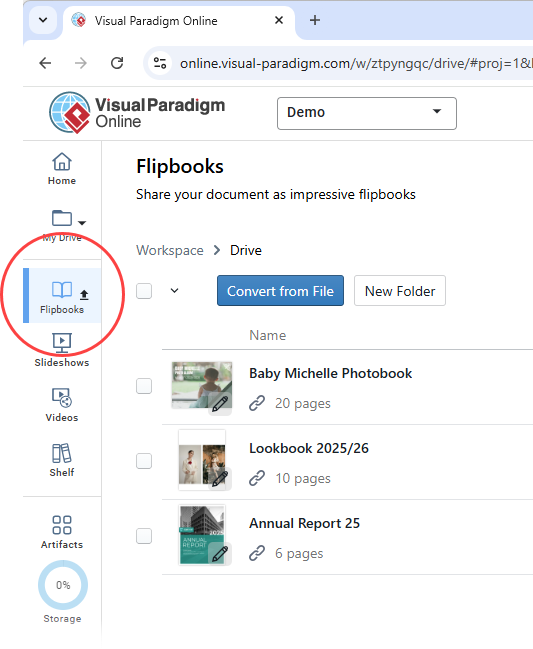
Open your workspace page in Visual Paradigm Online.
-
Select Flipbooks from the left-hand menu to view your library.
-
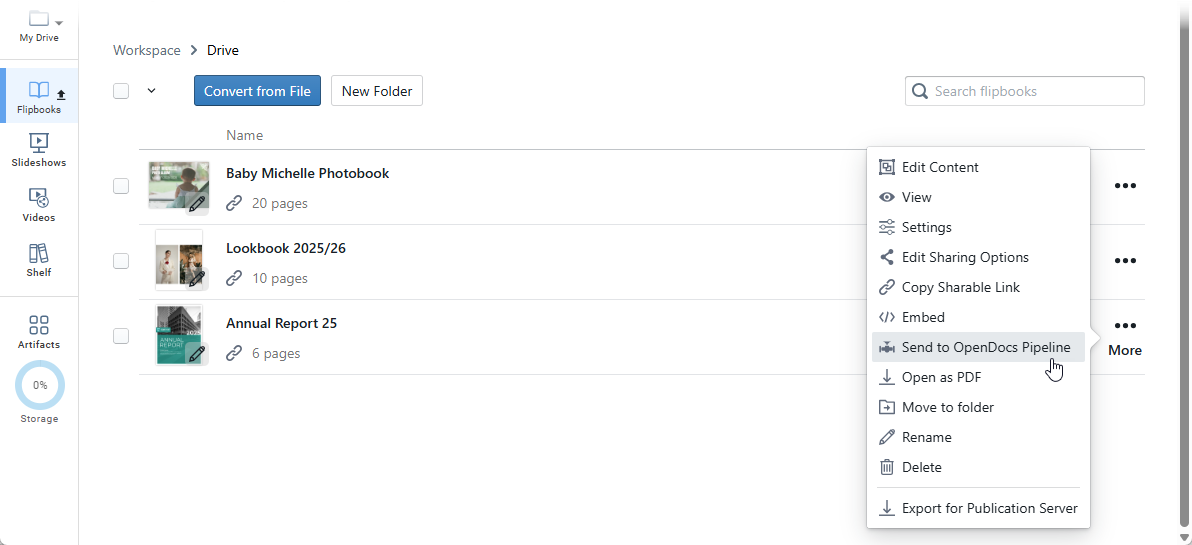
Locate the flipbook you wish to share and click More… on the right side.
-
Select Send to OpenDocs Pipeline.
-
(Optional) Enter a comment regarding this share and click OK to proceed.
How to Embed Your Flipbook in OpenDocs
Once your flipbook is in the pipeline, follow these steps to place it in your document:
-
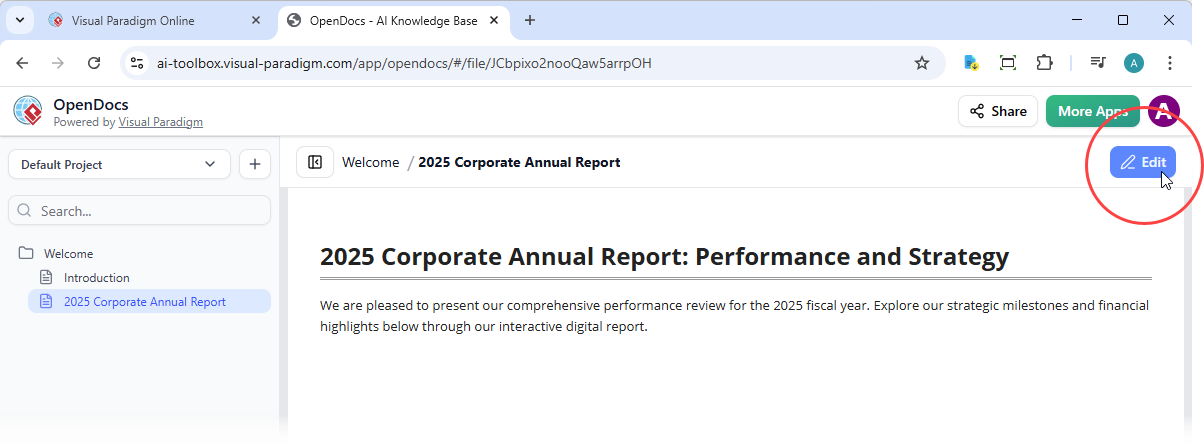
Navigate to the page in OpenDocs where you want to embed the book.
-
Click Edit at the top right of the screen.
-
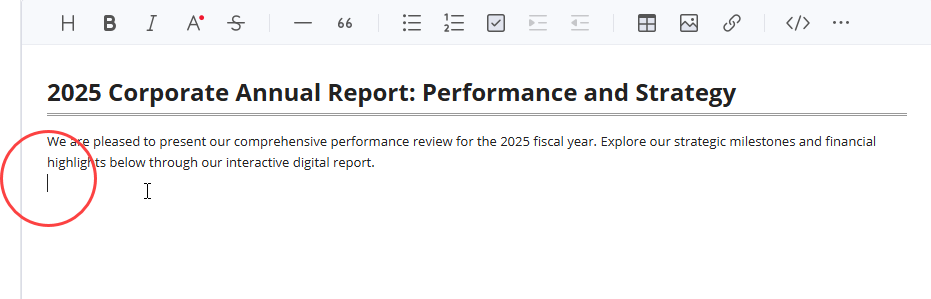
Position your cursor exactly where you want the flipbook to appear.
-
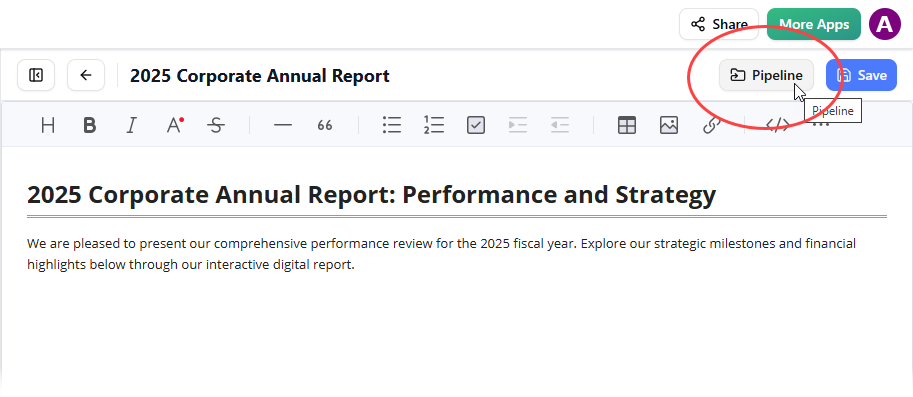
Click the Pipeline button located at the top right.
-
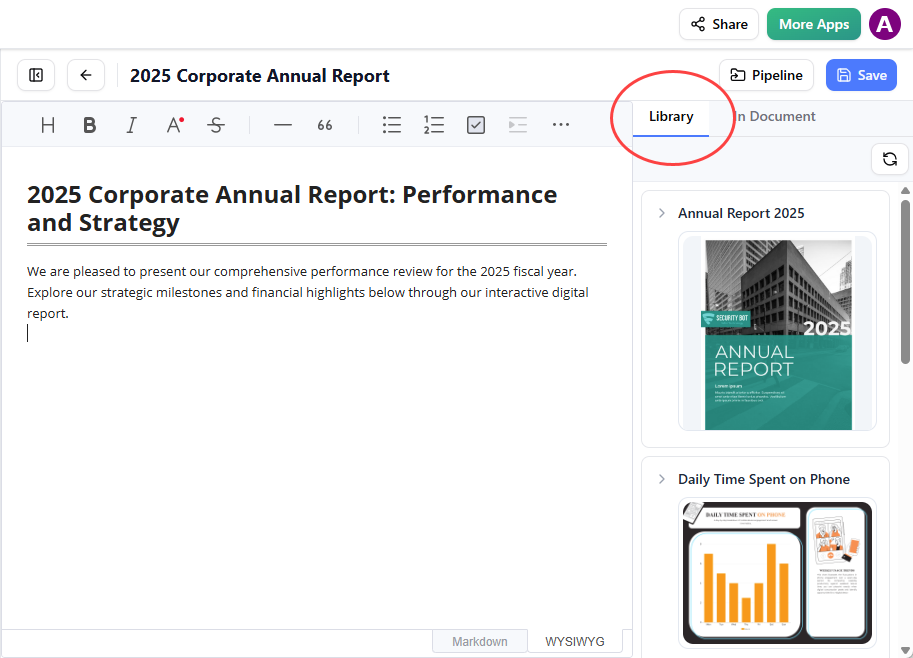
Open the Library tab; you will see the flipbook you sent from VP Online.
-
Click on the flipbook to insert it.
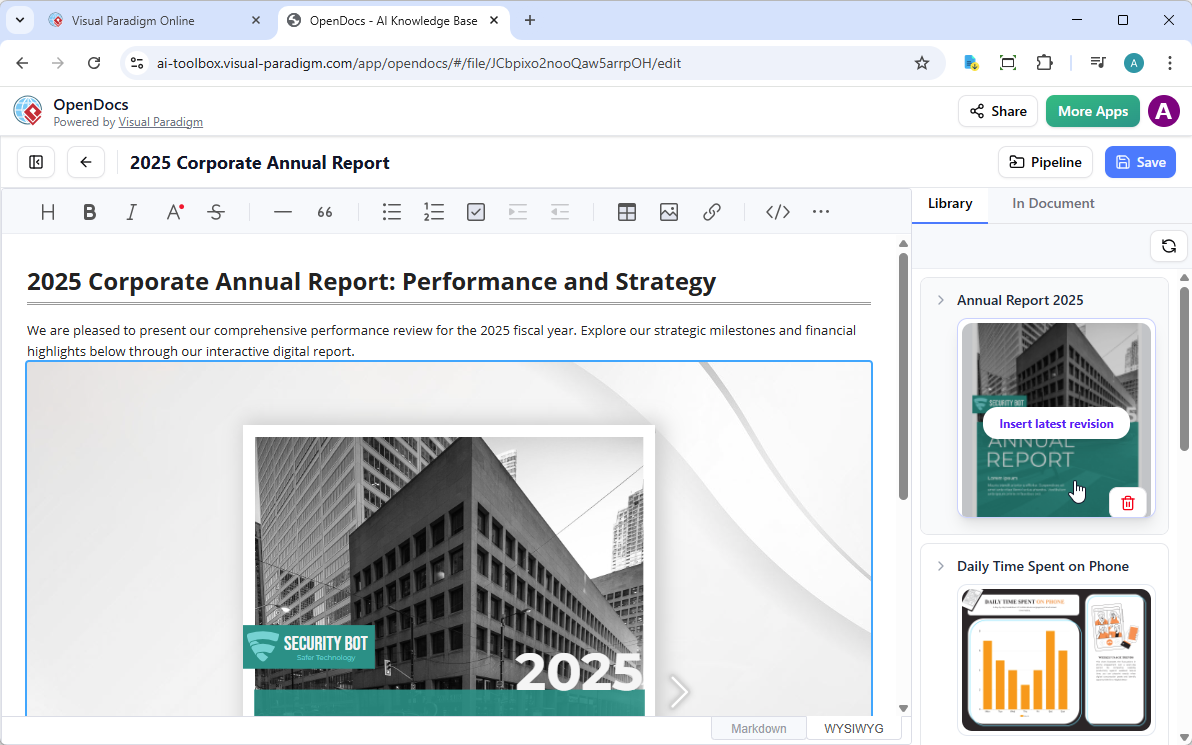
💡 Tip: If the flipbook is added to the end of the page, select it and press Enter to create a new line and adjust the positioning.
Note: In Edit mode, the flipbook remains static. To interact with it, simply save your changes and exit Edit mode. Once live, you can share the page or the entire space using the Share button in the top bar.
📖 Feature 2: Share Entire Digital Bookshelves to OpenDocs
Following our flipbook integration update, we’re taking your documentation to the next level. You can now share entire bookshelves from Visual Paradigm Online directly to OpenDocs—perfect for presenting curated collections in a professional, organized layout.
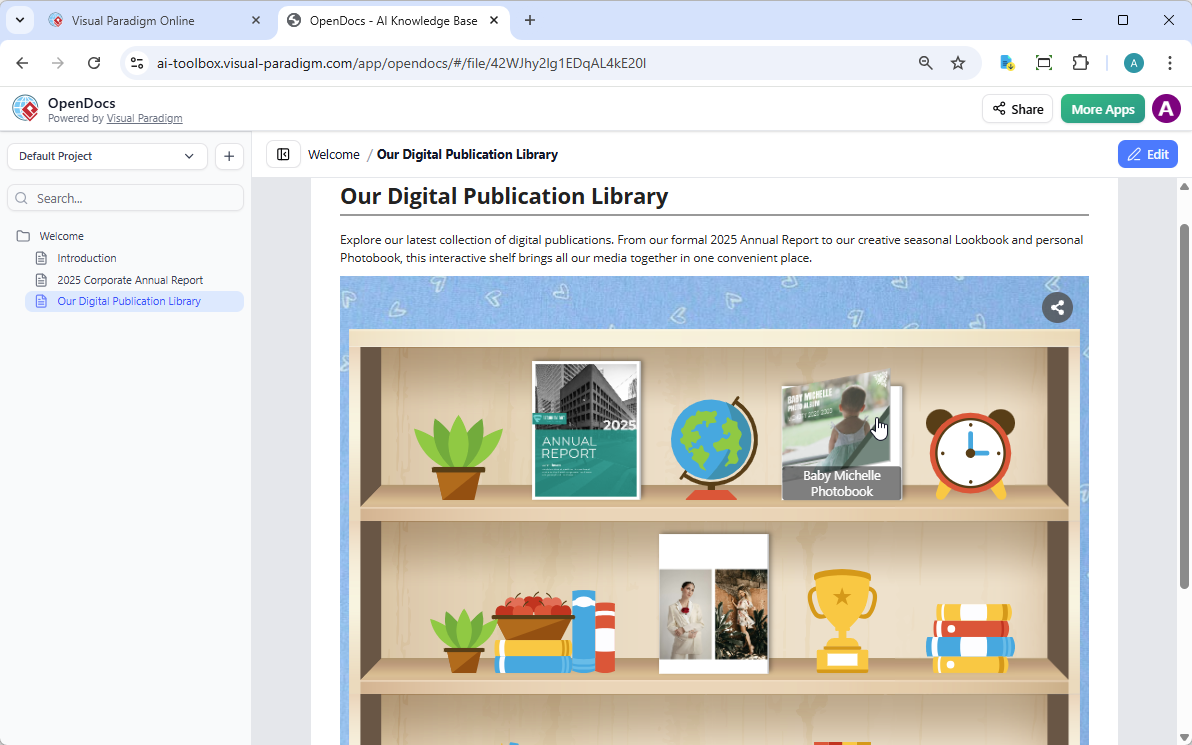
Flexible Sharing: Bookshelves vs. Individual Flipbooks
Our digital bookshelf maker is designed for maximum flexibility. Depending on your content strategy, choose how to present your work:
| Option | Best For | Example Use Cases |
|---|---|---|
| Individual Flipbooks | Focused “hero” documents | Annual Reports, Product Launches, Single Training Modules |
| Curated Bookshelves | Collections & series | Training Libraries, Lookbooks, Photobooks, Multi-Part Guides |
Whether you are using our AI flipbook software to create one book or a hundred, the integration with OpenDocs ensures your library is always just a few clicks away.
How to Send Your Bookshelf to the Pipeline
-
Navigate to your workspace in Visual Paradigm Online.
-
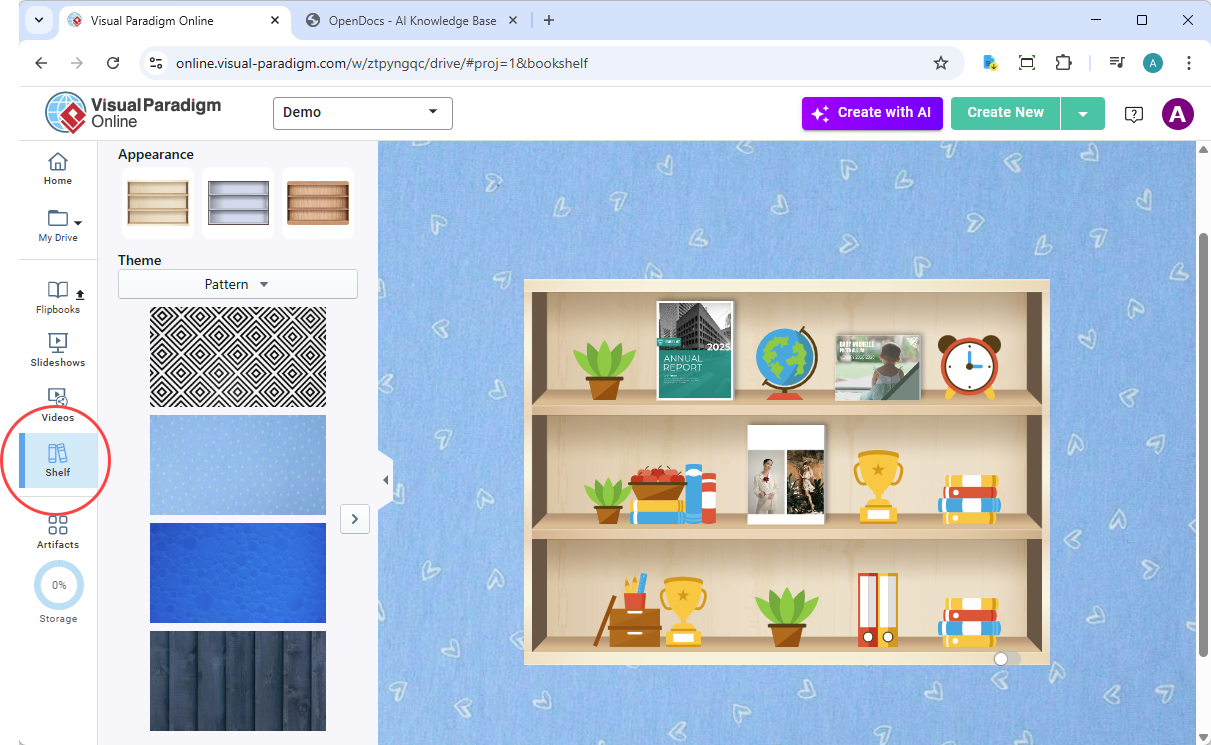
Select Shelf from the left-hand menu.
-
Select the bookshelf you wish to publish.
-
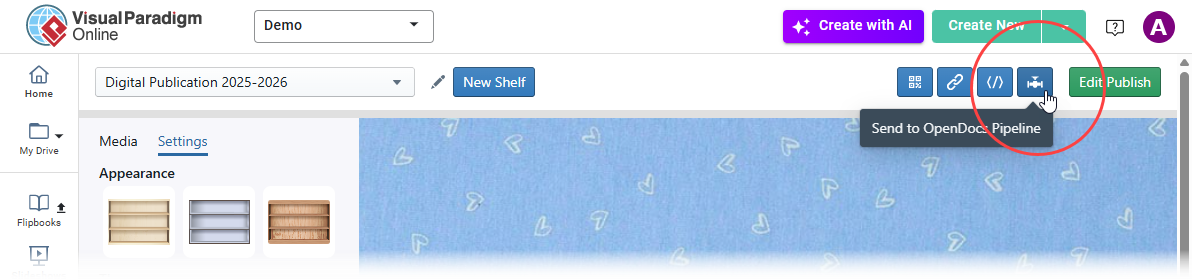
Click the Pipeline icon button at the top right of the screen.
-
(Optional) Enter a comment and click OK.
How to Embed the Bookshelf in OpenDocs
-
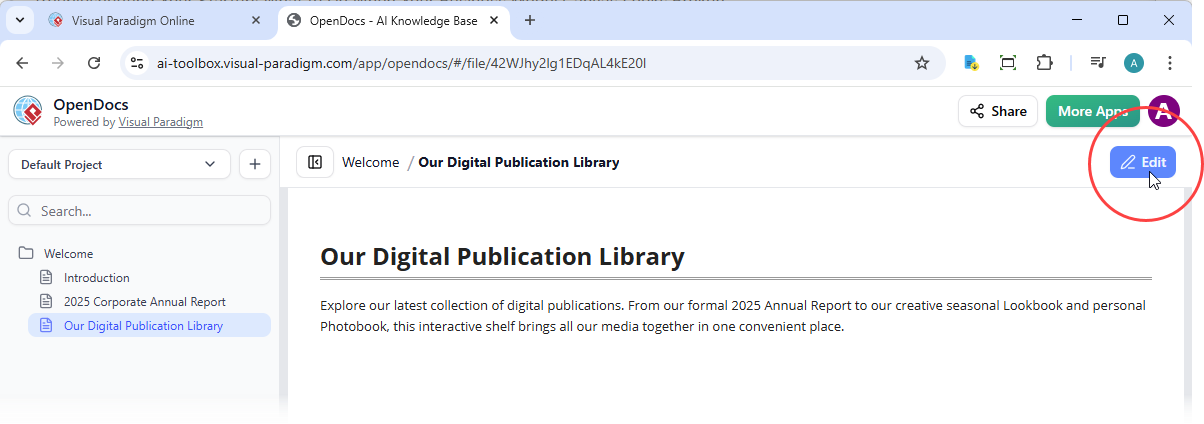
Open your OpenDocs page and click Edit.
-
Position your cursor where you want the shelf to appear.
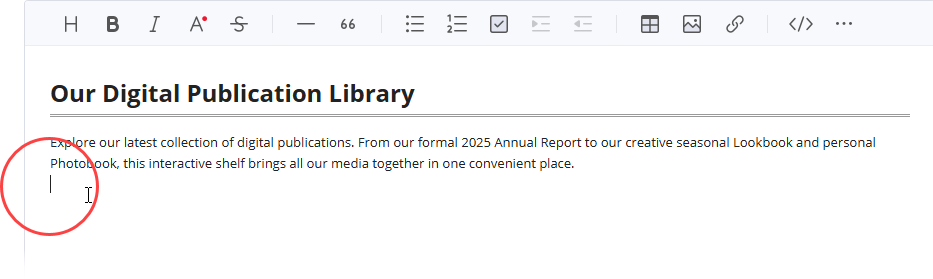
-
Click the Pipeline button (top right).
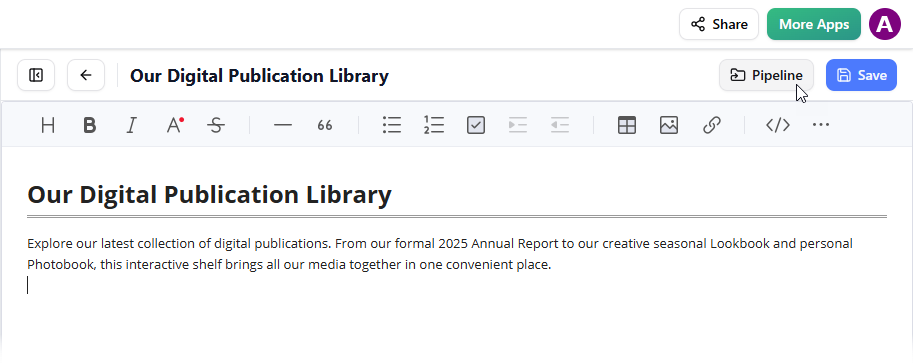
-
Open the Library tab.
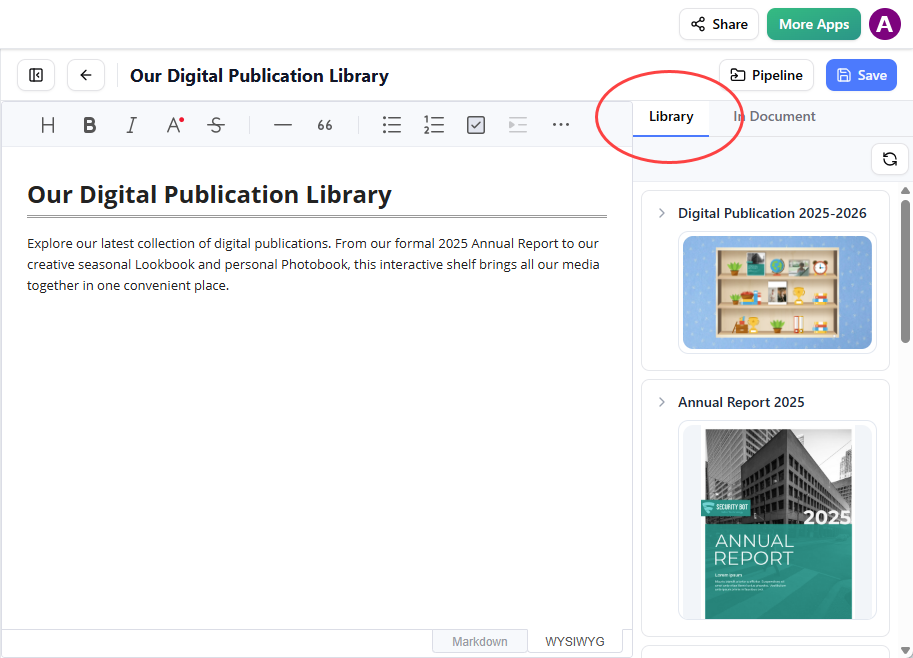
-
Select your bookshelf to insert it into the page.
💡 Tip: To move your cursor below the shelf after insertion, select the shelf and press Enter.
Note: While in Edit mode, the shelf is a static placeholder. Save your changes and exit Edit mode to interact with the shelf, browse the books, and play embedded videos. You can then use the Share button in the top bar to distribute your page.
🔄 Workflow Summary: Share, Collaborate, and View
| Action | How it Works |
|---|---|
| Organize | In your workspace, use the Bookshelf feature to catalog your publications by type or genre using customizable themes. |
| Share | Use the “Send to OpenDocs Pipeline” option in Visual Paradigm Online. This makes the bookshelf or flipbook immediately available to be embedded into your documentation. |
| Collaborate | Team members in OpenDocs can view the embedded bookshelves and flipbooks. Because OpenDocs is “diagram-aware,” it treats these as living artifacts rather than static images, allowing for real-time interaction and context. |
| View | Once embedded in OpenDocs, viewers can browse the entire collection or flip through specific books directly on the page without downloading any files. |
💡 Pro Tips & Best Practices
✨ Optimize for Mobile: Always preview your embedded flipbooks on multiple devices to ensure responsive behavior.
✨ Use Descriptive Comments: When sending content to the Pipeline, add clear comments to help teammates identify the right asset quickly.
✨ Leverage AI Tools: Use Visual Paradigm’s AI assistant to accelerate content creation before publishing to OpenDocs.
✨ Brand Consistency: Apply your organization’s color scheme and logo to flipbooks for professional cohesion across documentation.
✨ Update Strategically: When you update a flipbook in Visual Paradigm Online, re-share it to the Pipeline to ensure OpenDocs displays the latest version.
🚀 Ready to Get Started?
Experience the most versatile flipbook maker and documentation system on the market today. Whether you’re creating a single interactive report or curating an entire library of resources, this integration empowers you to deliver engaging, professional content exactly where your audience needs it.
Ready to enhance your documents with the industry’s leading flipbook software? Experience the power of integrated documentation today.
📚 Reference List
-
Reference List for Learning Fliplify of Visual Paradigm Online: A curated collection of resources to help users master Fliplify, the flipbook creation tool within Visual Paradigm Online.
-
The Ultimate Guide to the Visual Paradigm Online Platform’s Bookshelf: Comprehensive walkthrough of organizing, customizing, and publishing digital bookshelves in Visual Paradigm Online.
-
Visual Paradigm OpenDocs: The Complete Guide to AI-Powered Knowledge Management and Diagram Generation: In-depth exploration of OpenDocs’ AI capabilities, pipeline integration, and collaborative documentation features.
-
Fliplify by Visual Paradigm: Official homepage for Fliplify, the interactive flipbook creation technology powering Visual Paradigm Online’s publication tools.
-
Comprehensive Guide to Fliplify: Creating Interactive Flipbooks with Visual Paradigm: Step-by-step tutorial covering flipbook creation, customization, AI assistance, and multimedia embedding.
-
Virtual Bookshelf Feature – Visual Paradigm Online: Official documentation for the Digital Bookshelf feature, including setup, organization, and sharing capabilities.
-
Share Digital Bookshelf to OpenDocs – Release Notes: Official announcement detailing the new workflow for sharing curated bookshelf collections directly to OpenDocs.
-
Share Visual Paradigm Flipbooks to OpenDocs – Release Notes: Official announcement introducing the integration for embedding individual flipbooks into OpenDocs documentation.
-
Sync AI Diagram to OpenDocs Pipeline Guide: Technical guide for leveraging the Pipeline ecosystem to synchronize AI-generated diagrams and content with OpenDocs.
-
How to Organize Publication on Your Self-Host Bookshelf: Best practices for categorizing, theming, and managing publications within a self-hosted Digital Bookshelf.
-
Visual Paradigm Online to OpenDocs Export: Overview of export workflows and Pipeline connectivity between Visual Paradigm Online and OpenDocs.
-
My Journey to Seamless Documentation: Sending Visual Paradigm Creations Directly to OpenDocs: User case study showcasing real-world implementation of the flipbook/bookshelf to OpenDocs workflow.
-
Share Visual Paradigm Flipbooks to OpenDocs – Feature Highlight: Detailed feature breakdown of the flipbook sharing workflow, including use cases and technical requirements.
-
Share Digital Bookshelf to OpenDocs – Feature Highlight: Detailed feature breakdown of the bookshelf sharing workflow, including organization strategies and embedding instructions.
Related posts:
 From Desktop to Documentation: A Hands-On Review of Visual Paradigm’s OpenDocs Integration
From Code to Community: How Visual Paradigm Pipeline Powers Agile IT Teams’ Collaborative Knowledge Hub
From Chaos to Clarity: A Comprehensive Guide to AI-Powered BPMN Modeling
Mastering BPMN with Best Practices, AI, and Integrated Documentation
From Desktop to Documentation: A Hands-On Review of Visual Paradigm’s OpenDocs Integration
From Code to Community: How Visual Paradigm Pipeline Powers Agile IT Teams’ Collaborative Knowledge Hub
From Chaos to Clarity: A Comprehensive Guide to AI-Powered BPMN Modeling
Mastering BPMN with Best Practices, AI, and Integrated Documentation
