
Introduction
In the fast-paced world of software development and business analysis, documentation often lags behind implementation. Traditional diagramming tools require manual dragging and dropping, which can be time-consuming and difficult to maintain as systems evolve. Enter Visual Paradigm VPasCode, a revolutionary browser-based platform that merges the precision of code with the clarity of visual modeling, supercharged by Artificial Intelligence.
VPasCode adopts the Diagram-as-Code (DaC) approach, allowing users to create complex diagrams using text-based languages like PlantUML, Mermaid, and Graphviz. But it doesn’t stop there. By integrating generative AI, VPasCode allows you to describe a system in natural language and instantly generate a visual model. With the latest addition of cloud file saving, VPasCode has evolved from a simple editor into a persistent, project-based workspace for managing your visual documentation lifecycle.
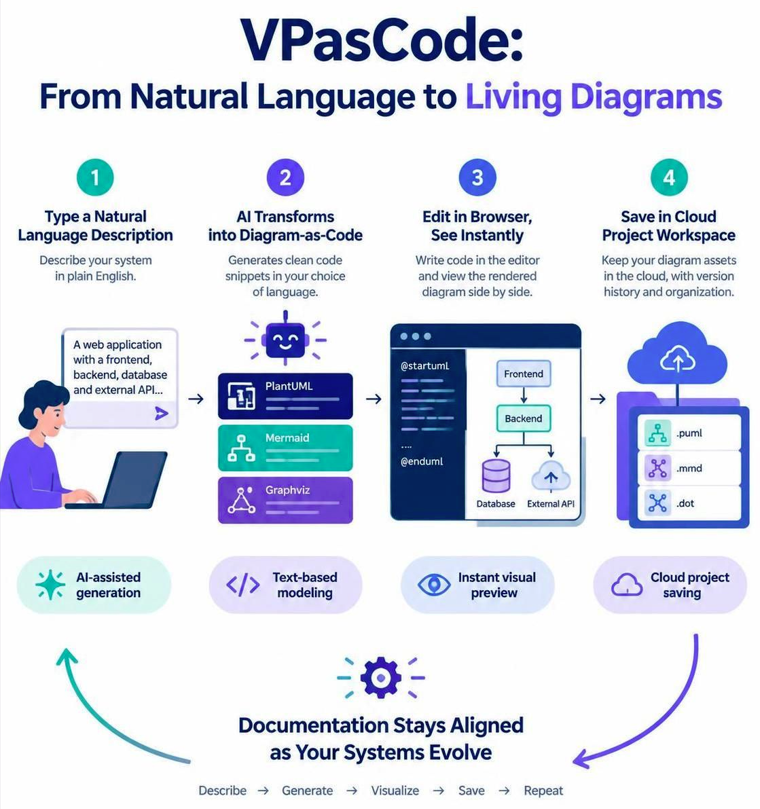
This guide provides a comprehensive walkthrough of VPasCode, from getting started with AI generation to managing your diagram assets in the cloud.
What Is VPasCode?
VPasCode is Visual Paradigm’s unified environment for text-to-diagram creation. It bridges the gap between requirements, code, and visual documentation by rendering diagrams in real-time beside the source code.
Instead of manually drawing shapes, you describe the diagram using text. For example, a PlantUML use case diagram can be defined simply as:
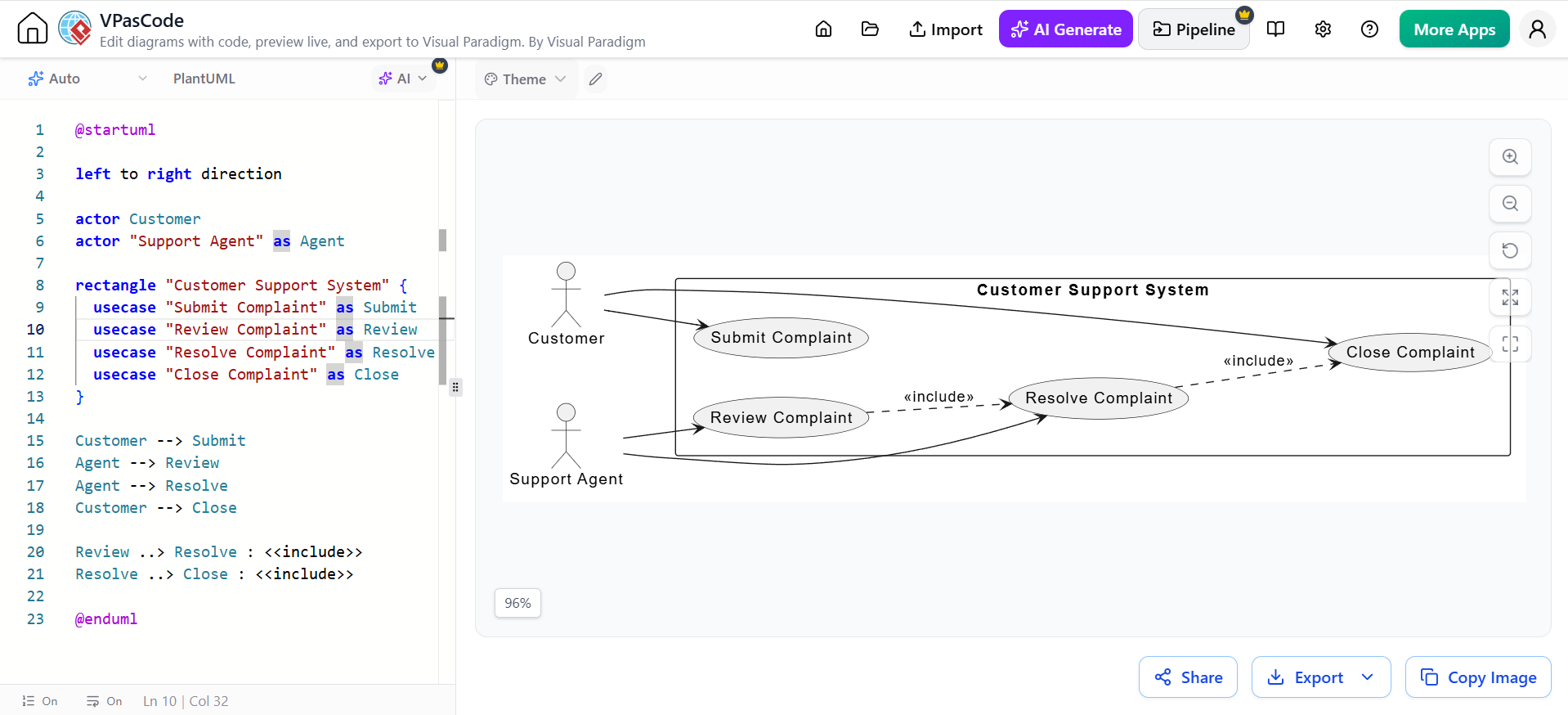
@startuml

left to right direction

actor Customer
actor "Support Agent" as Agent

rectangle "Customer Support System" {
  usecase "Submit Complaint" as Submit
  usecase "Review Complaint" as Review
  usecase "Resolve Complaint" as Resolve
  usecase "Close Complaint" as Close
}

Customer --> Submit
Agent --> Review
Agent --> Resolve
Customer --> Close

Review ..> Resolve : <<include>>
Resolve ..> Close : <<include>>

@enduml
VPasCode renders this source into a visual diagram instantly, eliminating the need for manual placement.
Main Features Overview
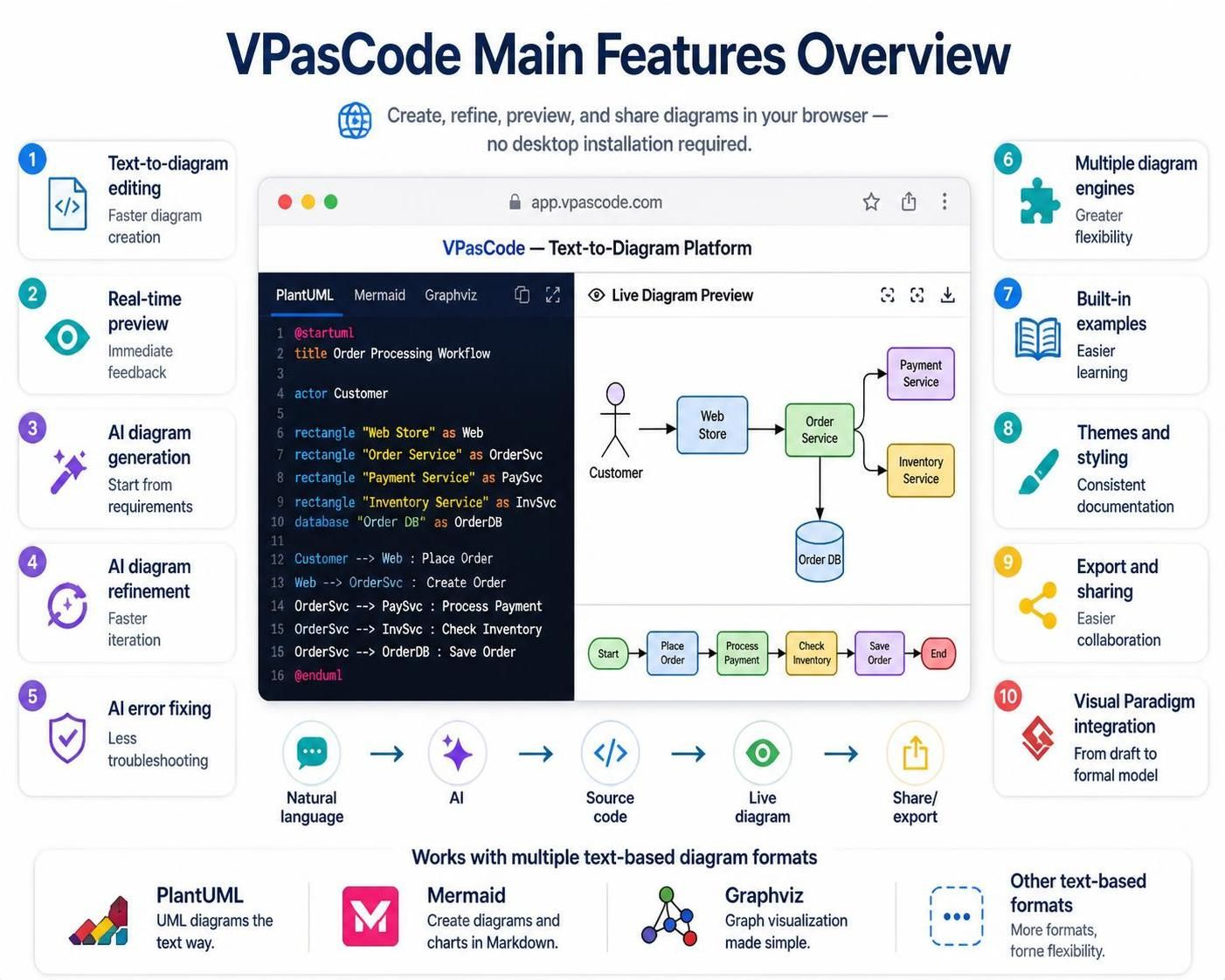
| Feature | What it provides | Typical benefit |
|---|---|---|
| Text-to-diagram editing | Create diagrams with PlantUML, Mermaid, Graphviz, and other supported formats | Faster diagram creation |
| Real-time preview | Shows the visual result beside the source code | Immediate feedback |
| AI diagram generation | Converts natural-language descriptions into diagram code | Useful for starting from requirements |
| AI diagram refinement | Modifies existing diagrams from plain-language instructions | Faster iteration |
| AI error fixing | Helps detect and correct diagram syntax problems | Reduces troubleshooting |
| Multiple diagram engines | Lets users select the syntax best suited to the task | Greater flexibility |
| Built-in examples | Provides templates and sample diagrams | Easier learning |
| Theme and styling support | Applies visual styles to supported diagrams | More consistent documentation |
| Export and sharing | Supports image export and shareable diagram links | Easier collaboration |
| Visual Paradigm integration | Connects AI-generated diagrams with Visual Paradigm tools | Smooth transition from draft to formal model |
Getting Started
1. Open VPasCode
Open the VPasCode workspace in your browser. No installation is required.
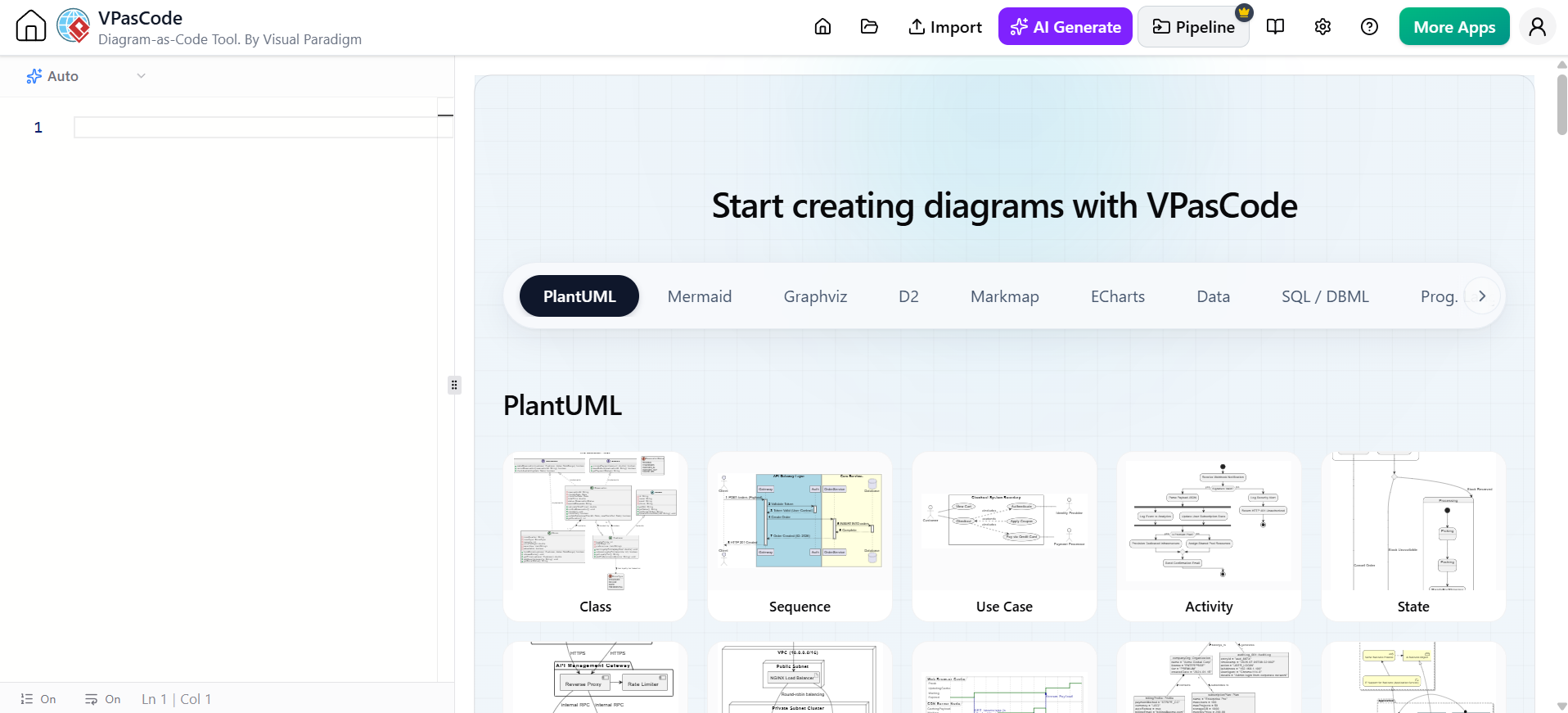
The workspace includes:
-
A diagram-code editor
-
A live diagram preview
-
AI assistance controls
-
Diagram examples/templates
-
Export and sharing options
2. Choose a Diagram Language
Select the syntax appropriate for your task:
PlantUML
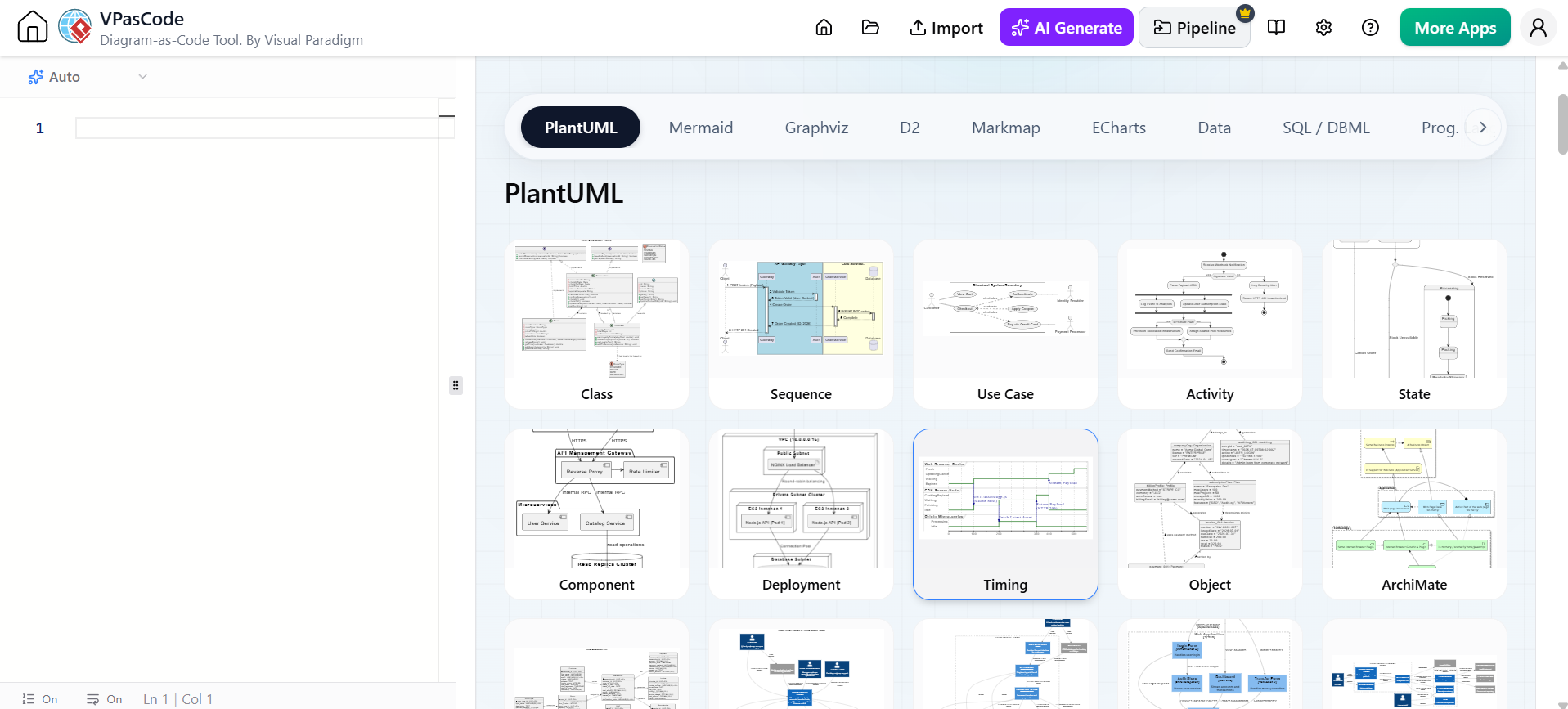
Ideal for UML diagrams (Use Case, Class, Sequence, Activity), C4 architecture, and ArchiMate. Best for formal technical documentation.
Mermaid
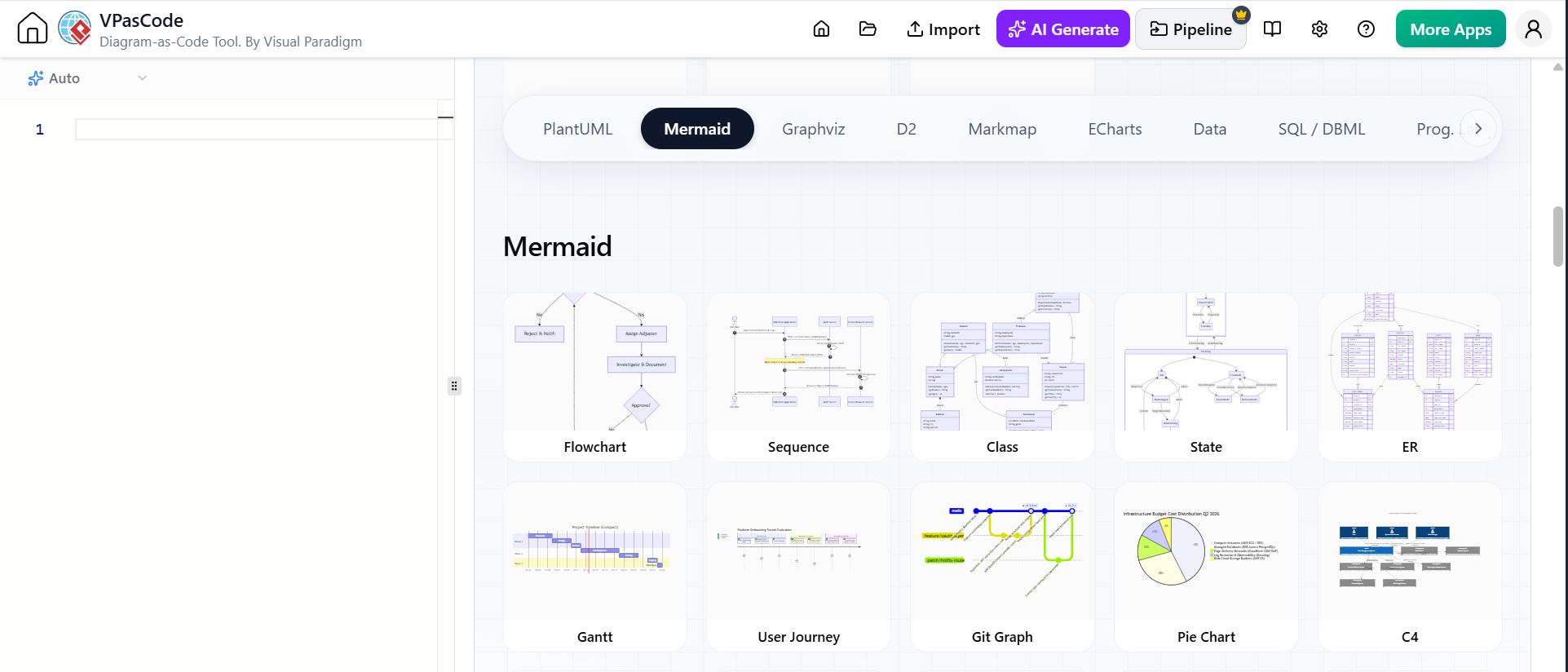
Great for simple flowcharts, Markdown documentation, GitHub/GitLab integration, Gantt charts, and basic sequence diagrams.
Graphviz
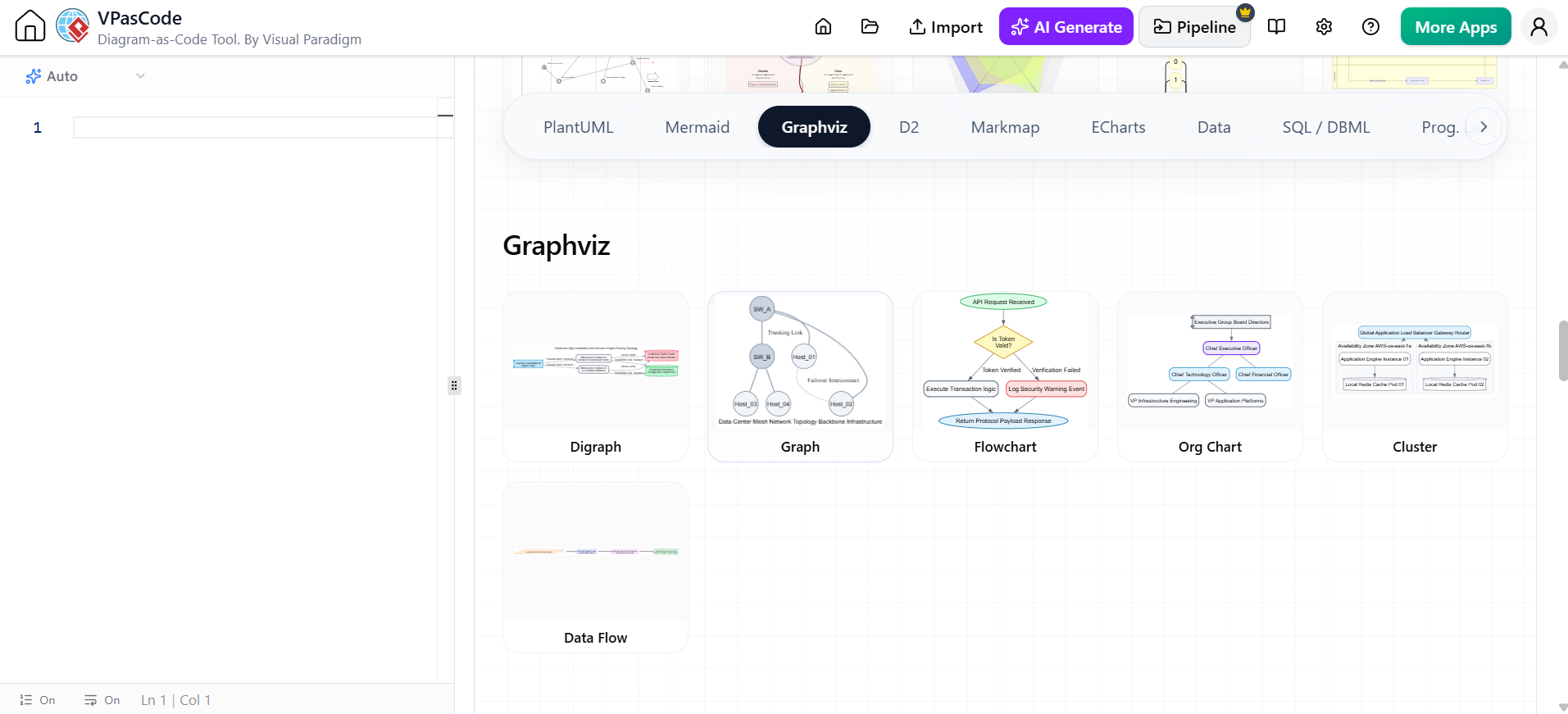
Perfect for network structures, dependency maps, data flows, and large relationship graphs.
3. Start with an Example
If you are new to DaC:
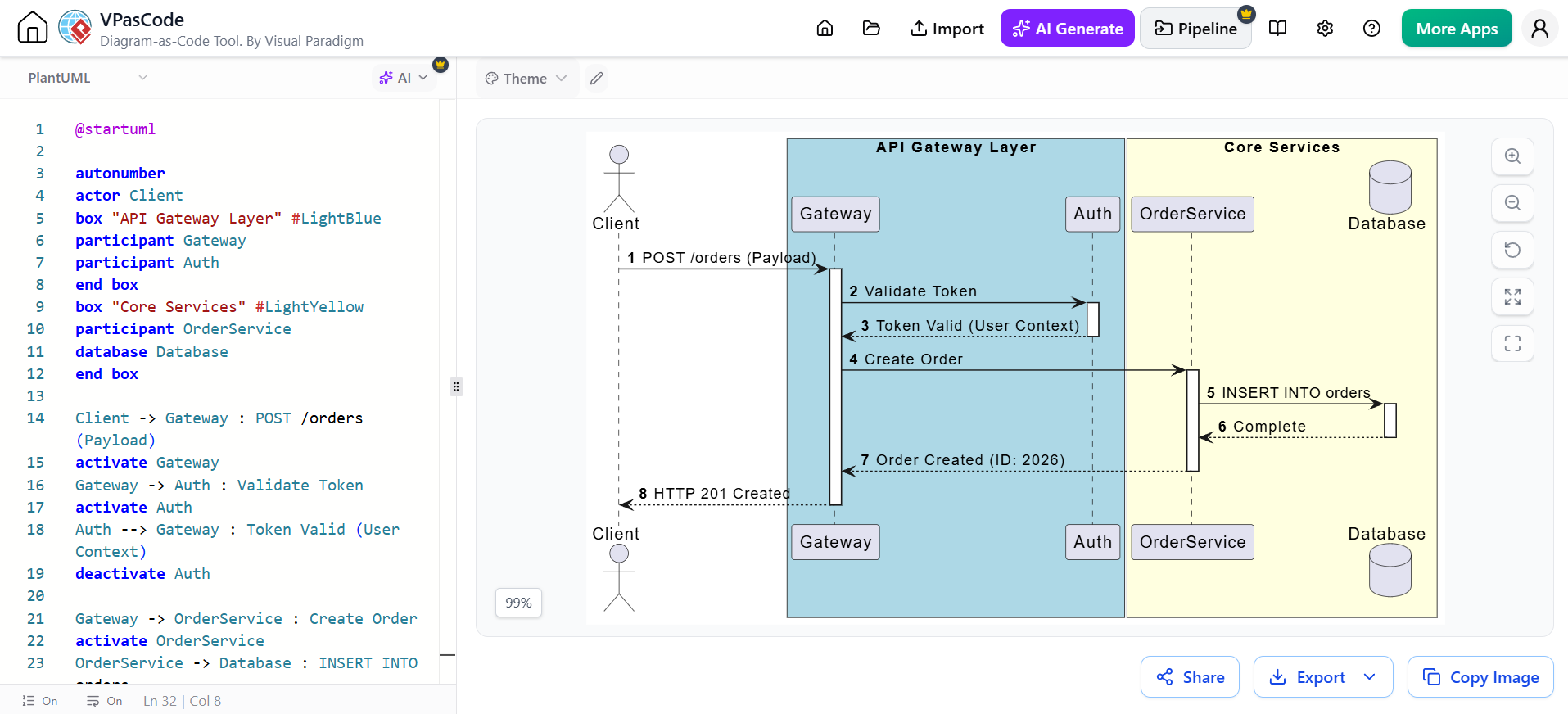
-
Open the examples or template area.
-
Select a diagram type.
-
Review the source code and observe how each line affects the visual output.
-
Replace sample content with your own data.
Creating a Diagram with AI
VPasCode’s AI capabilities allow you to bypass syntax memorization and start directly from ideas.
1. Describe the Diagram in Natural Language
Provide a clear prompt identifying the diagram type, participants, and relationships.
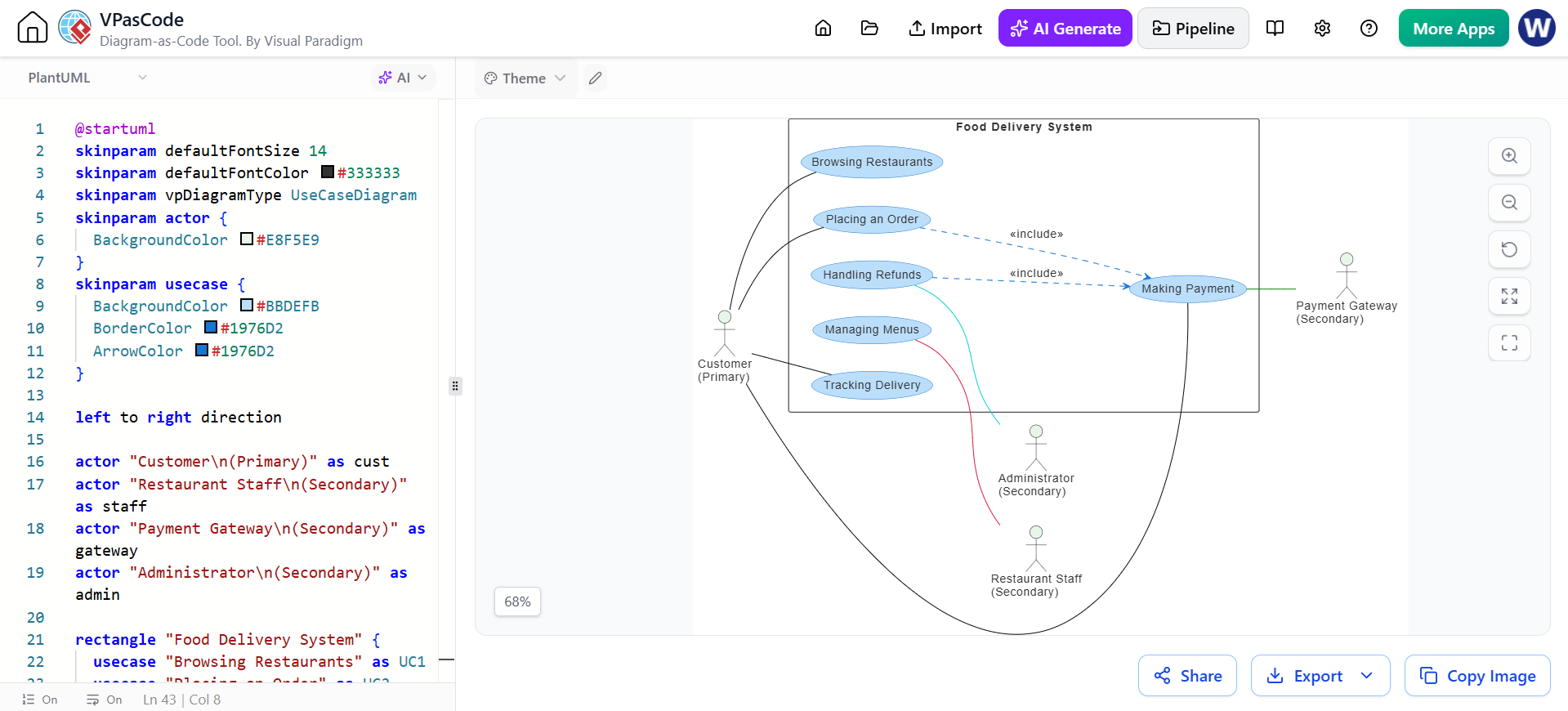
Example Prompt: “Generate a PlantUML use case diagram for an online food-delivery system. Include Customer, Restaurant Staff, Delivery Driver, Payment Gateway, and Administrator actors. Show use cases for browsing restaurants, placing an order, making payment, tracking delivery, managing menus, and handling refunds.”
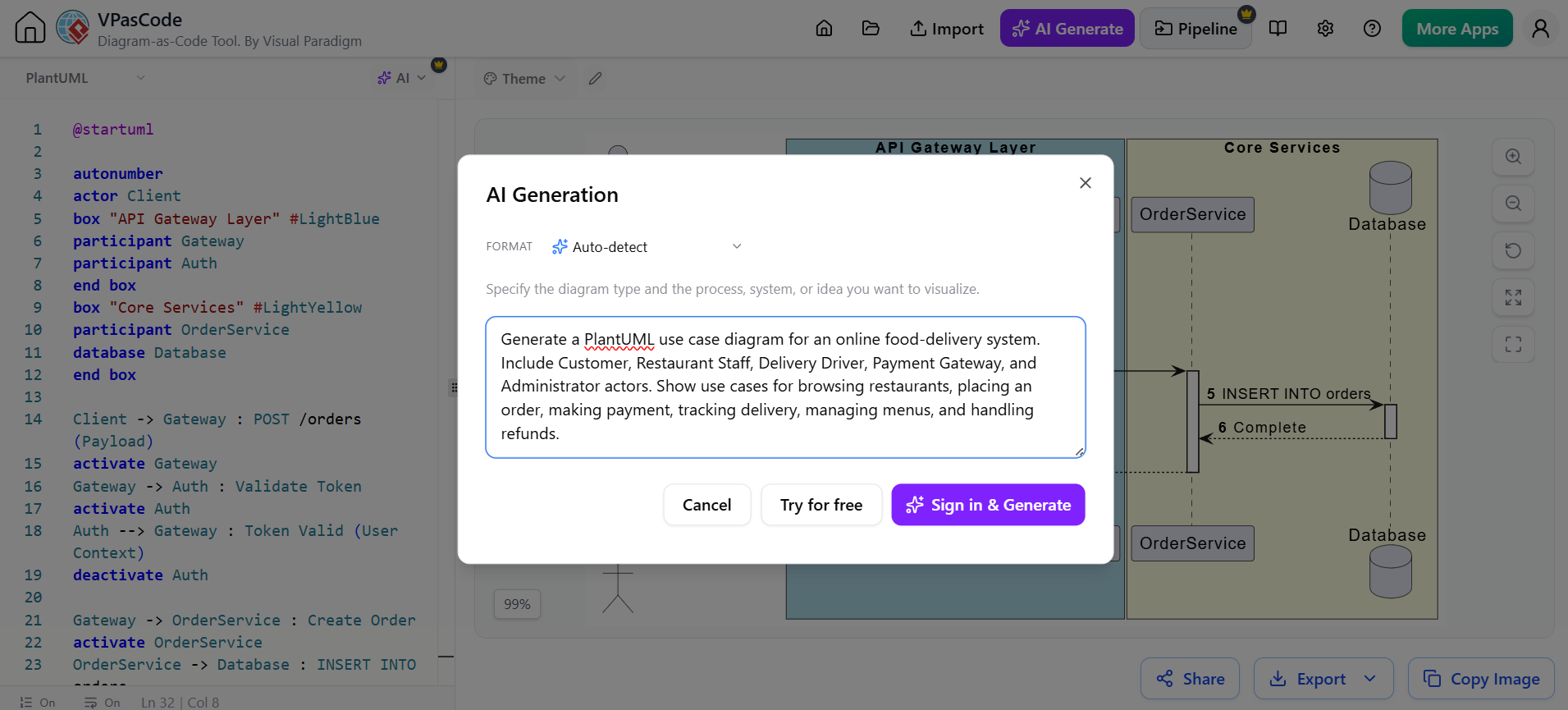
VPasCode converts this description into code:
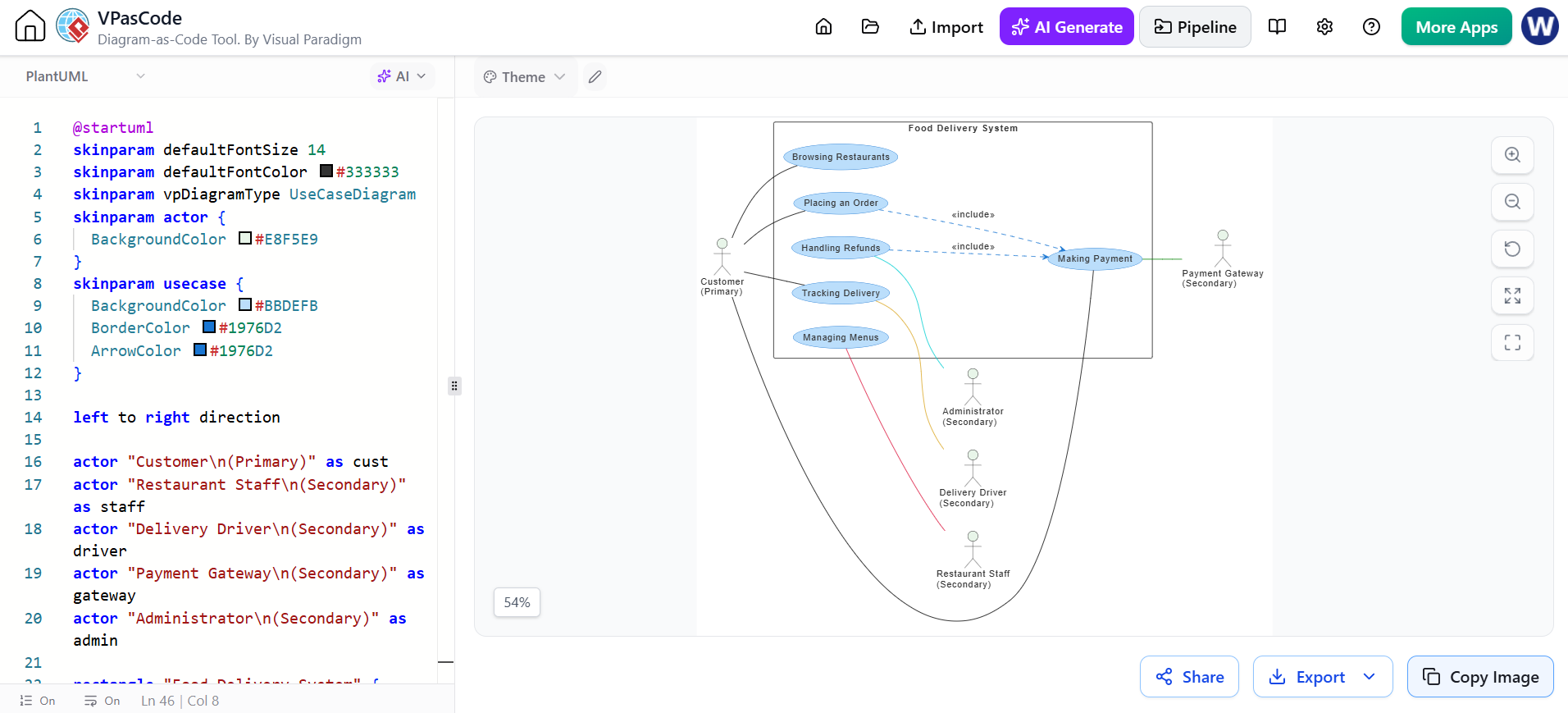
2. Review the Generated Source
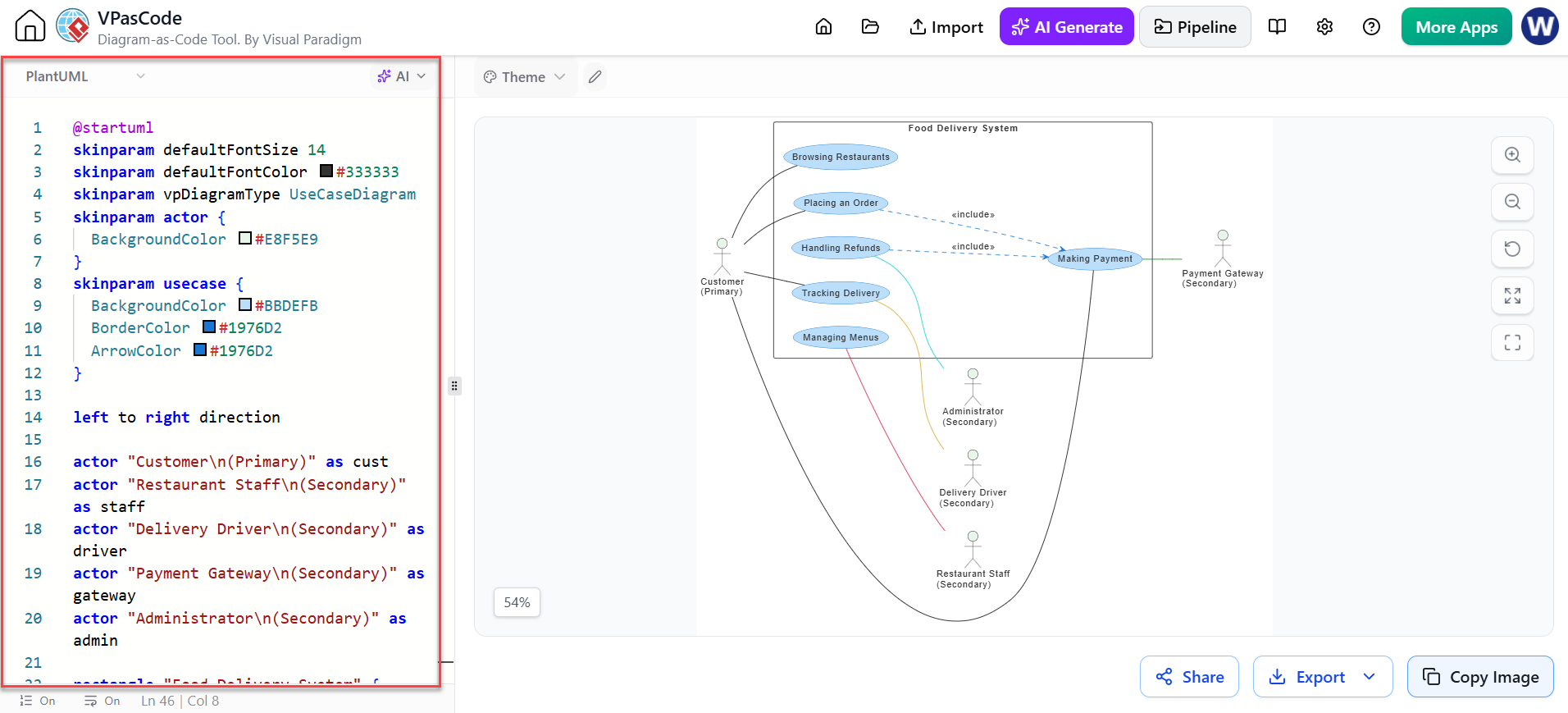
Always review the AI output:
-
Check the diagram type and syntax.
-
Confirm all actors and tasks are included.
-
Compare the source with the visual preview.
3. Refine the Diagram with AI
You can iterate on the diagram using natural language commands.
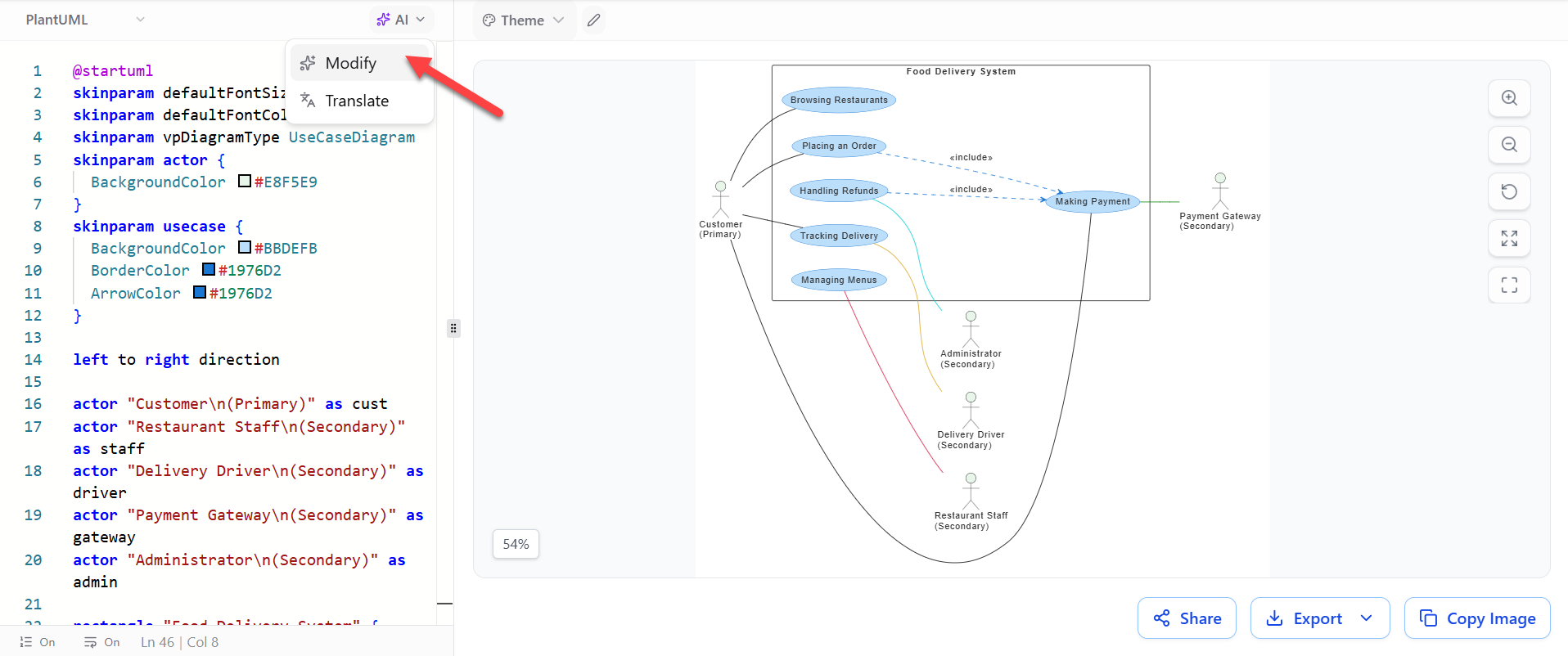
Examples:
-
“Add a Manager actor and connect them to refund approval.”
-
“Change this to a non-swimlane activity diagram.”
-
“Add an error path when payment fails.”
4. Use AI to Fix Syntax Errors
If the diagram fails to render, use the AI fix feature.
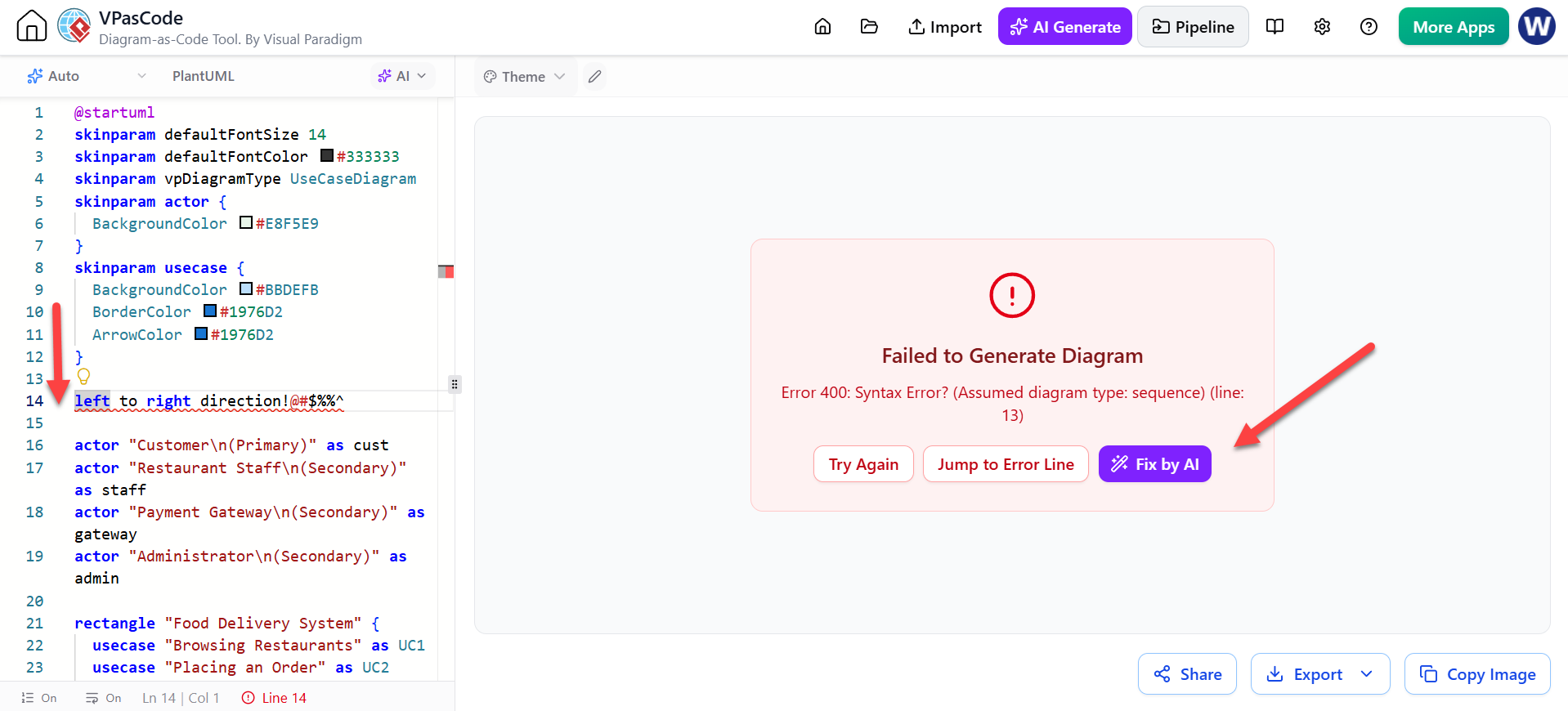
Instruction: “Fix the PlantUML syntax error without changing the actors or relationships.”
Editing the Diagram as Code
For precise control, edit the source code directly in the left pane.
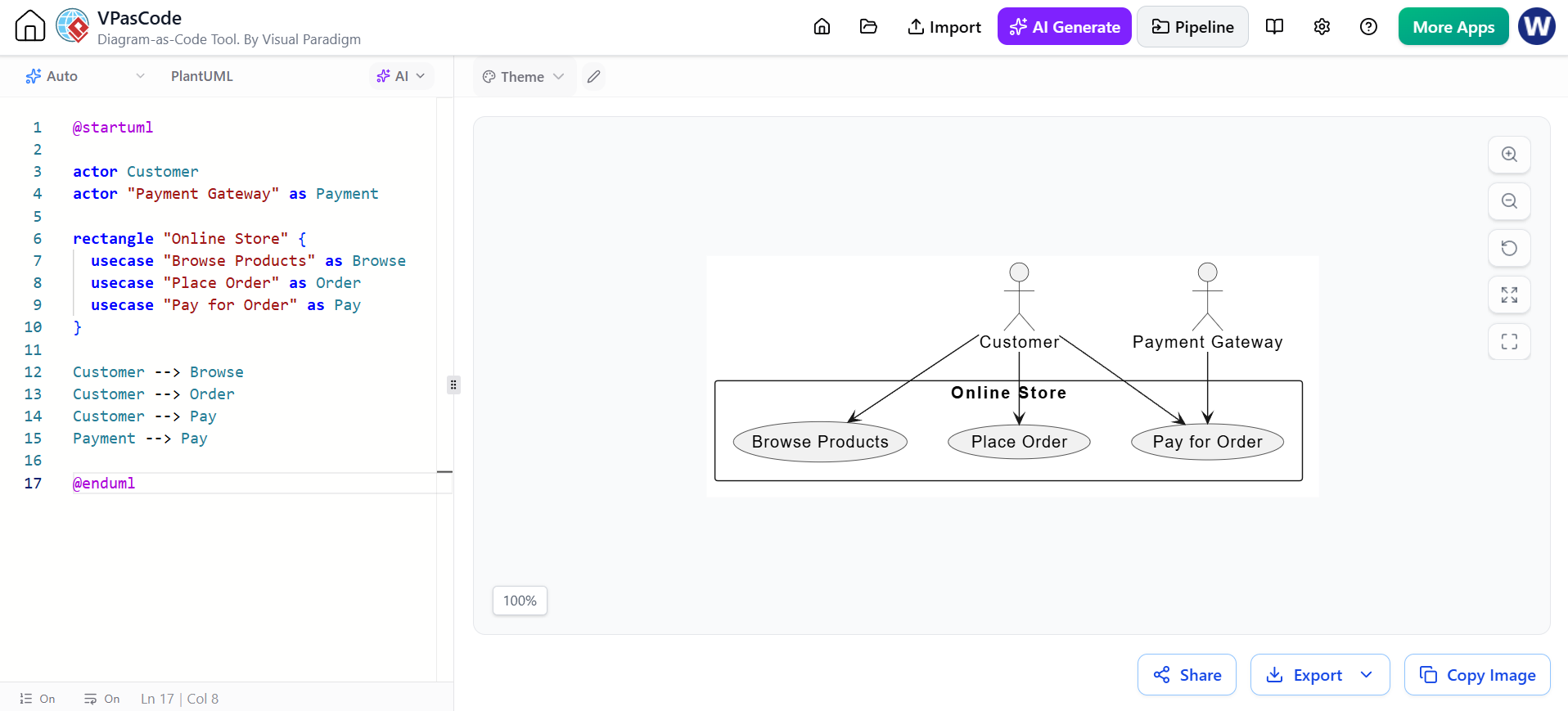
@startuml

actor Customer
actor "Payment Gateway" as Payment

rectangle "Online Store" {
  usecase "Browse Products" as Browse
  usecase "Place Order" as Order
  usecase "Pay for Order" as Pay
}

Customer --> Browse
Customer --> Order
Customer --> Pay
Payment --> Pay

@enduml
Key Editing Practices:
-
Live Preview: The right side updates instantly as you type.
-
Small Changes: Modify one section at a time to isolate errors.
-
Comments: Use comments to document sections for team clarity.
@startuml

' Actors
actor Customer
actor Administrator

' System boundary
rectangle "Order Management System" {
  usecase "Create Order" as CreateOrder
  usecase "Review Order" as ReviewOrder
}

' Relationships
Customer --> CreateOrder
Administrator --> ReviewOrder

@enduml
Editing with the Visual Paradigm Online Diagram Editor
While VPasCode is excellent for code-based editing, you may prefer a graphical interface for final polishing.
1. Import or Open the Diagram
Generate or edit your diagram in VPasCode, then select Open in Visual Paradigm to switch to the GUI editor.
2. Use the Shape Palette
Access elements specific to your diagram type (BPMN, UML, etc.) from the left-side palette.
3. Add and Arrange Elements
Drag shapes onto the canvas, resize them, and align items for better readability.
4. Create Relationships
Connect elements using association lines, arrows, and labels.
5. Validate and Export
Ensure all names are clear and relationships are correct before exporting to PNG or SVG.
New Feature: Save File on Cloud for Reuse and Maintenance
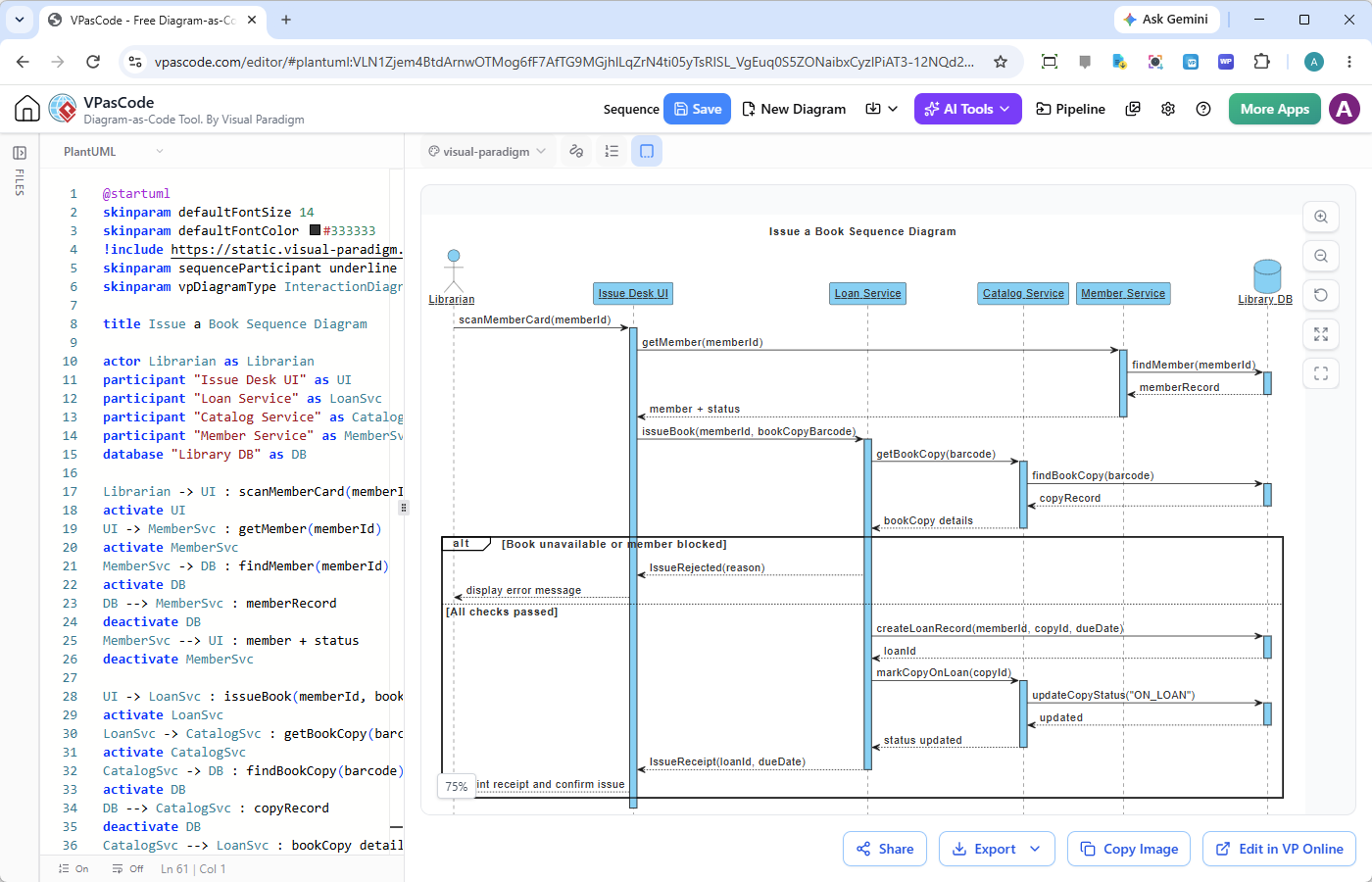
Working with diagrams as code offers flexibility, but managing multiple scripts can become chaotic. VPasCode now supports cloud file saving, transforming it from a temporary editor into a persistent workspace.
Why Cloud File Saving Matters
In basic online editors, switching diagrams often means losing your current work unless you manually copy-paste code elsewhere. This leads to:
-
Difficulty tracking which tab contains which diagram.
-
Risk of losing work if a tab is closed.
-
Lack of central organization for project assets.
VPasCode solves this by allowing you to save diagram code directly to your Visual Paradigm cloud workspace, organized by project.
How to Save Diagram Code to the Cloud
Step 1: Sign in
Log in to your Visual Paradigm account at VPasCode.
Step 2: Open the Project Files Pane
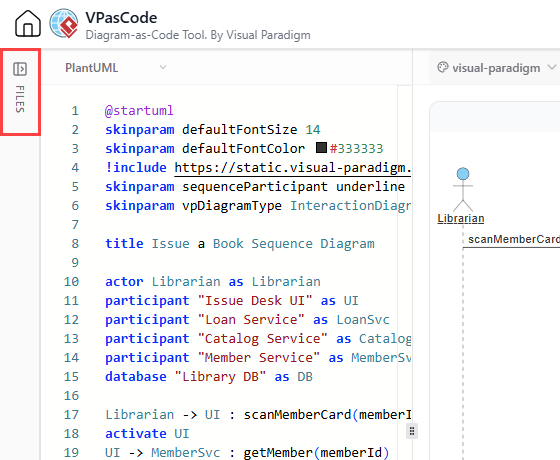
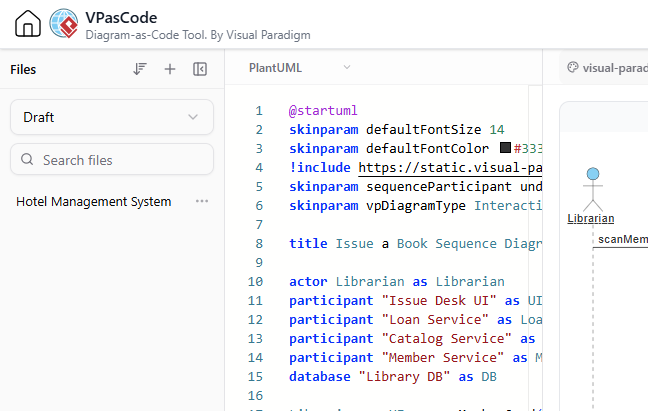
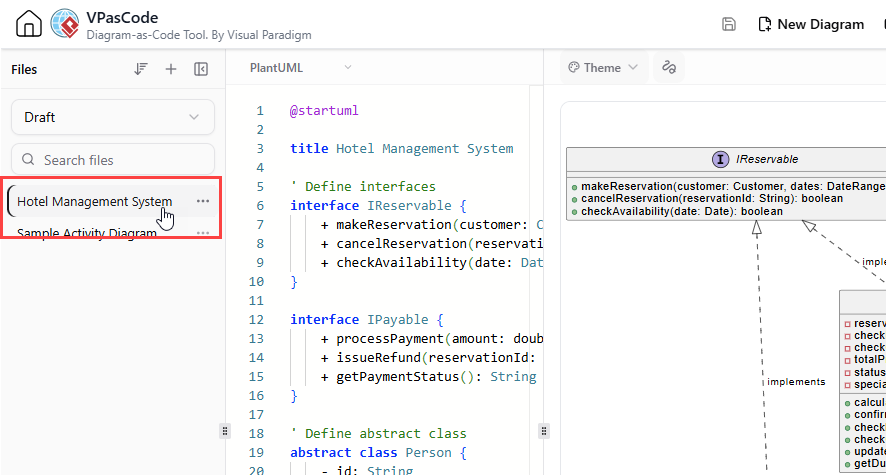
Click the Files sidebar on the left to slide out the Project Files pane.
Step 3: Create a New Diagram File
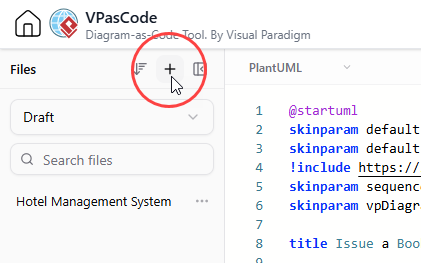
Click the + button in the Files pane or New Diagram in the app bar.

Step 4: Write and Save
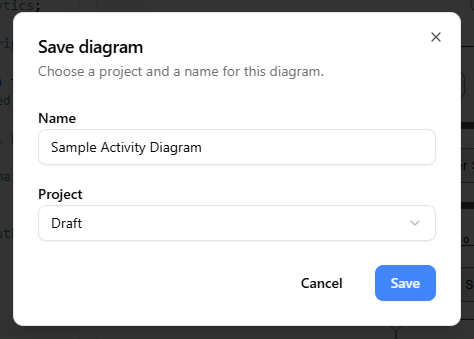
Write your diagram code (PlantUML, Mermaid, etc.). Click Save in the app bar.

Select a Visual Paradigm project as the destination.
How to Reopen and Manage Saved Diagrams
Reopening Files
-
Open the Files sidebar.
-
Locate your diagram in the Project Files pane.
-
Click the file to load it into the editor.
Switching Projects
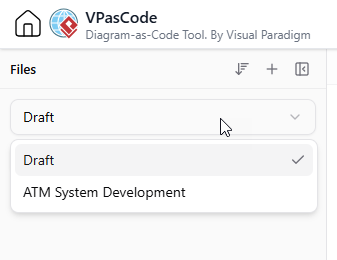
Use the project drop-down menu at the top of the Files pane to switch between different projects (e.g., Architecture, Business Process, Personal Learning).
Advanced File Management
-
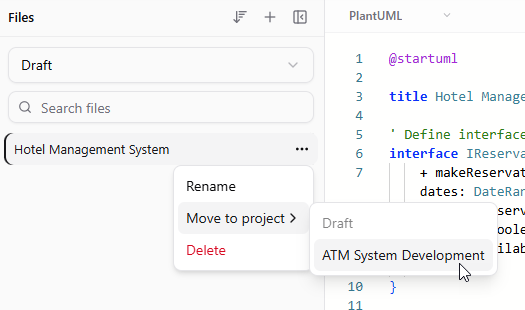
Move Files: Right-click a file, select Move to project, and choose a new destination.
-
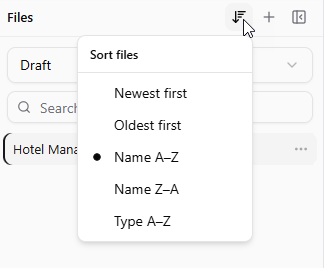
Sort Files: Sort by name, type, or modification date to find files quickly.
Practical Usage Cases
-
Software Architecture: Model microservices, API communication, and C4 levels.
-
Business Process Modeling: Create BPMN diagrams for approval workflows and customer journeys.
-
Requirements Analysis: Visualize user stories and use cases.
-
Technical Documentation: Maintain diagrams alongside source code in version-controlled repositories.
-
Agile Workshops: Generate quick diagrams during refinement sessions to align stakeholders.
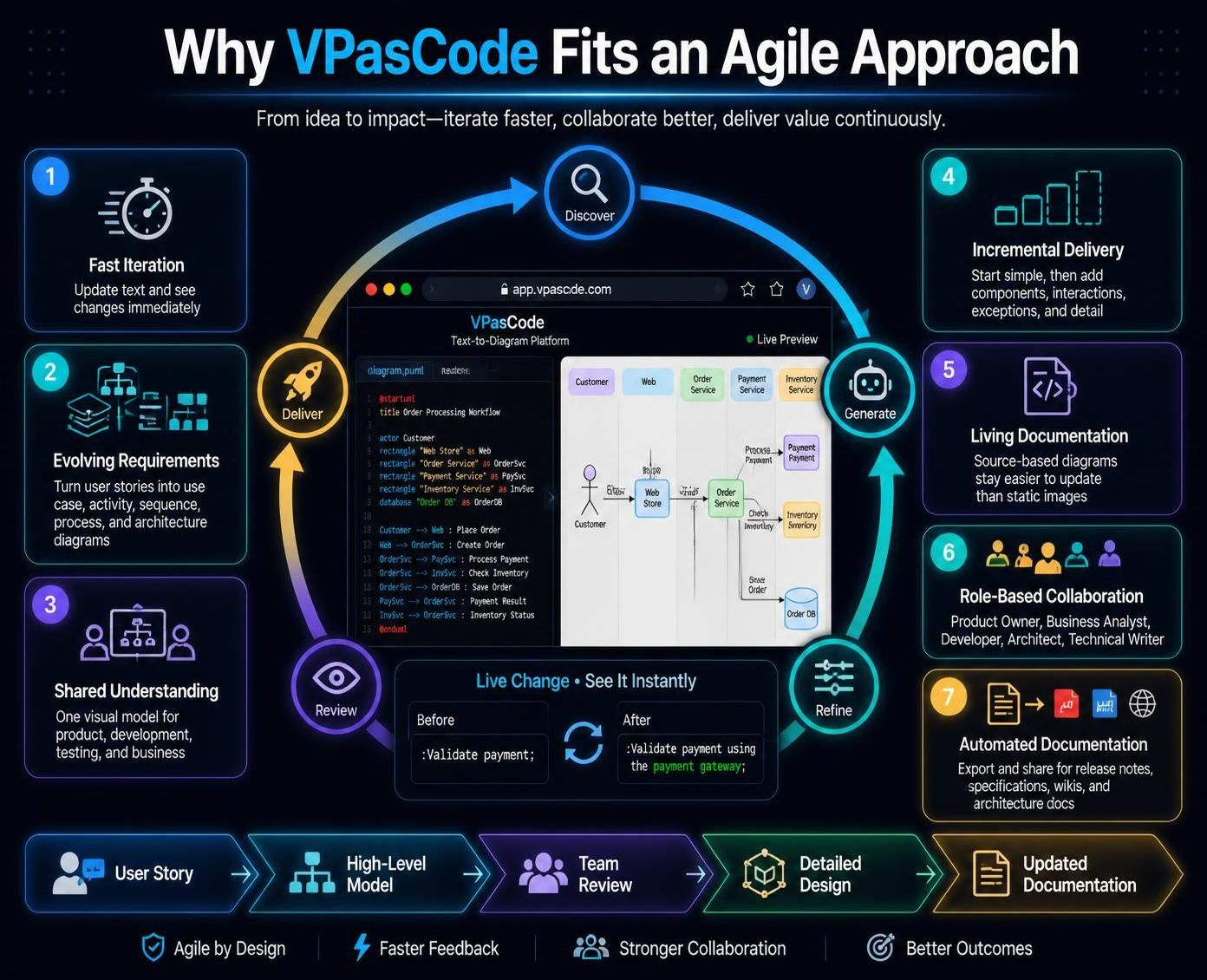
Why VPasCode Fits an Agile Approach
-
Fast Iteration: Update text code faster than redrawing shapes.
-
Evolving Requirements: Diagrams grow with user stories.
-
Shared Understanding: Provides a common visual model for developers and stakeholders.
-
Living Documentation: Source code diagrams are easier to keep up-to-date than static images.
Recommended Agile Workflow
-
Describe the requirement in natural language.
-
Generate a first diagram with AI.
-
Review the model with the team.
-
Refine using AI instructions.
-
Edit the source for precision.
-
Save to Cloud Project for persistence.
-
Export or share the result.
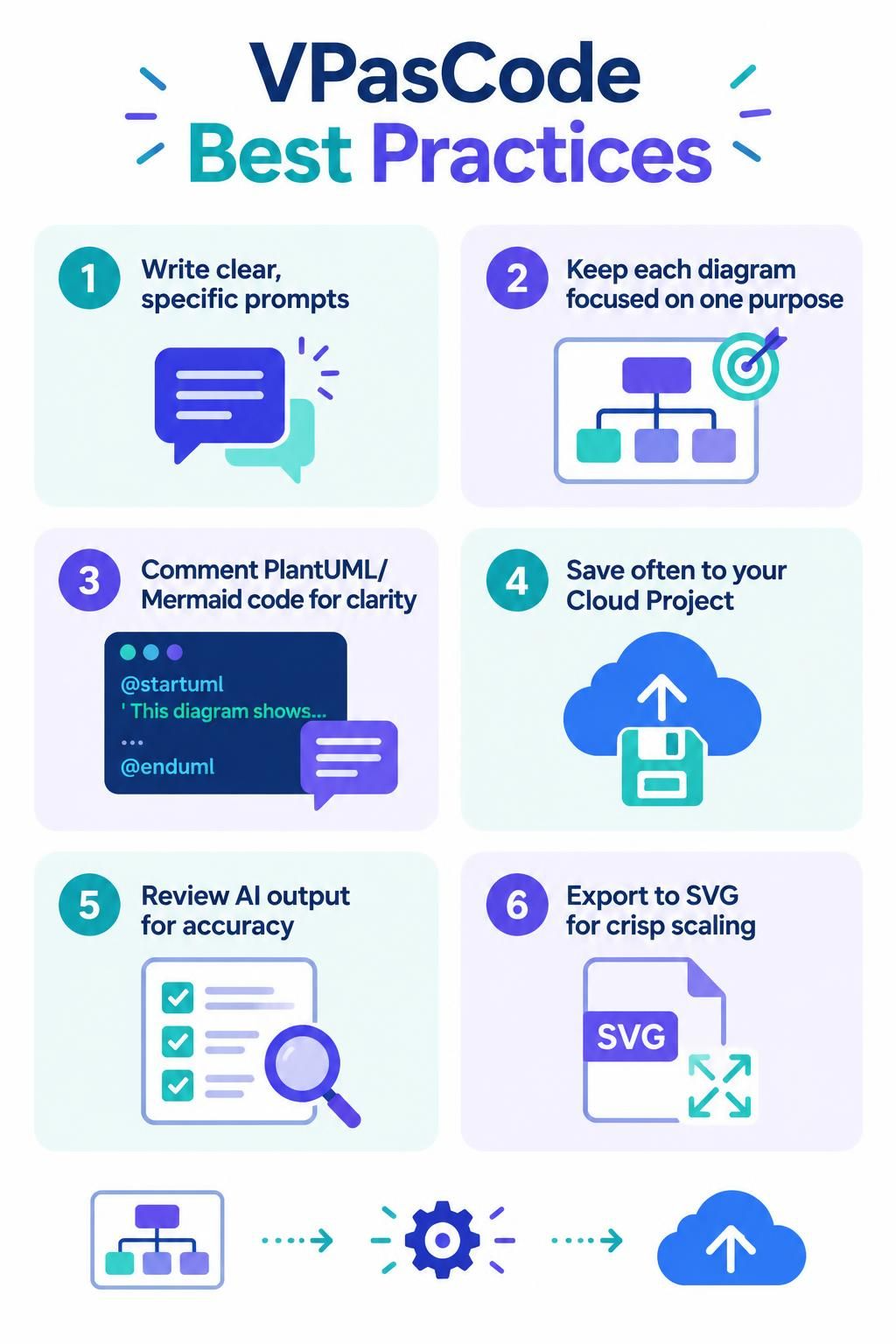
Best Practices
-
Use clear, specific prompts for AI generation.
-
Keep diagrams focused on one purpose.
-
Use comments in PlantUML/Mermaid code for clarity.
-
Save frequently to your Cloud Project to avoid loss.
-
Treat AI output as a draft; always review for accuracy.
-
Export to SVG for high-quality scaling in documentation.
Conclusion
Visual Paradigm VPasCode represents a significant leap forward in visual modeling. By combining the speed of AI generation, the precision of diagram-as-code, and the convenience of cloud-based file management, it empowers teams to create, maintain, and share high-quality diagrams effortlessly. Whether you are a developer documenting architecture, a business analyst mapping processes, or a product manager visualizing user journeys, VPasCode provides the tools to keep your documentation alive and aligned with your evolving projects.
Start diagramming at the speed of thought today by visiting VPasCode.
References
-
Welcome to Visual Paradigm VPasCode: Diagram-as-Code (DaC): Official introduction to the unified platform that brings Mermaid, PlantUML, and Graphviz into one text-to-diagram workspace.
-
Introducing Visual Paradigm 18.1: A New Era of Unified Ecosystems: Overview of VPasCode’s features including AI error fixing, language translation, and free tier capabilities.
-
60-Second VPasCode Quickstart Guide: Step-by-step tutorial to create your first diagram in under a minute with Mermaid and PlantUML examples.
-
Supported Diagram Engines & Formats: Comprehensive list of supported formats including PlantUML, Mermaid.js, Graphviz, D2, SQL, JSON, and source code visualization.
-
From Code to Clarity: A Beginner’s Guide with VPasCode and OpenDocs: Tutorial on creating sequence, C4 Container, and class diagrams with direct integration to OpenDocs documentation.
-
Diagram-as-Code Tool: Unified PlantUML, Mermaid & More: Explanation of why developers adopt text-to-diagram tools and how VPasCode unifies different syntax engines.
-
VPasCode: Diagramming at the Speed of Thought: Review highlighting AI superpowers, supported frameworks, and comparison of free vs premium tiers.