

Introduction: Why I Started Looking for a Better Way to Share Presentations
Like many professionals who regularly create and share PowerPoint decks, I’ve faced the universal frustration: you spend hours perfecting animations, transitions, and custom fonts, only to have them break or disappear when you share the file with clients or colleagues. Email attachments are clunky, PowerPoint Online simplifies too much, and screen-sharing during remote meetings isn’t always practical.
That’s when I discovered Visual Paradigm’s PowerPoint Web Viewer. Over the past few weeks, I’ve tested it extensively with various presentation types—from investor pitch decks to training materials—and I’m sharing my genuine, third-party experience to help you decide if it’s right for your workflow.
First Impressions: The Upload Experience
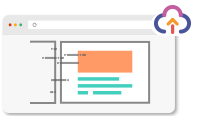
Getting started was refreshingly simple. The interface presents two clear options:
-
Upload your existing PowerPoint via drag-and-drop or file browser
-
Create a new presentation using Visual Paradigm’s online office suite

No account creation required for basic viewing—just upload and go. As someone who’s abandoned tools after complicated sign-up flows, this frictionless entry point immediately earned points.
Core Features: What Actually Works in Practice
✅ Your All-in-One PowerPoint Viewer
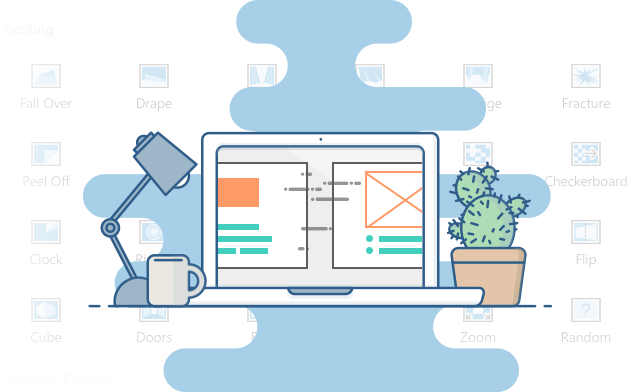
Preserved animations and transitions
This is the headline feature, and it delivers. In my testing, complex motion paths, fade effects, and slide transitions rendered smoothly in the browser—something I’ve rarely seen from free web converters.
Web-based, no installation needed
Recipients view presentations directly in their browser. No PowerPoint license, no plugin downloads, no “Can you send a PDF?” follow-ups.
Accessible on any browser
I tested on Chrome, Firefox, Safari, and Edge. Rendering was consistent across all platforms.
✅ Sharing That Actually Saves Time

Social media integration
One-click sharing to Facebook, Twitter, LinkedIn, Reddit, and WeChat. I shared a product demo deck to LinkedIn and tracked engagement directly—surprisingly effective for thought leadership content.
Embed codes for websites
Copy-paste HTML to embed live presentations on blogs or company sites. The embedded player maintains all interactive elements.
QR code sharing
Perfect for conferences or workshops. I generated a QR code for a training session; attendees scanned and viewed materials on their phones instantly.
Password protection
Sensitive client decks? Add a password before sharing. Simple but essential for professional use.
✅ Annotations: More Than Just Speaker Notes
Guiding the presentation
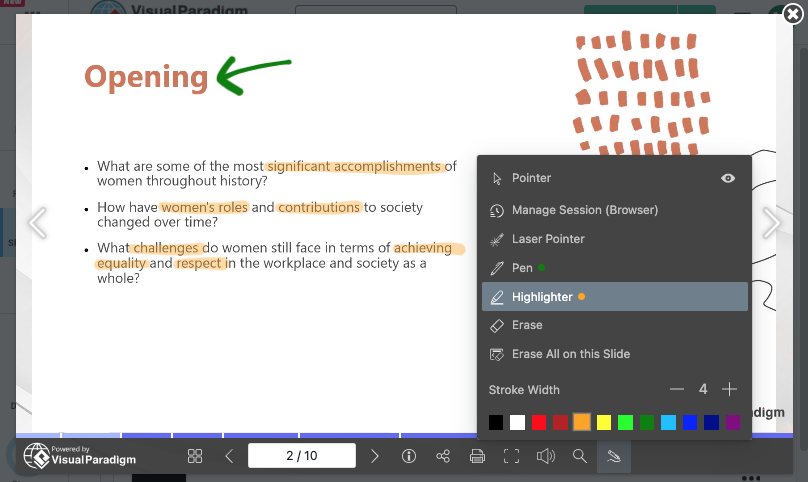
Add personal prompts directly to slides. I used this to embed talking points for a client pitch—helpful when presenting remotely without a second monitor.
Study materials
Transform presentations into learning tools by adding references, definitions, or discussion questions. Great for training content.
Clarifying key information
Highlight critical data points with annotations that draw audience attention exactly where you want it.
✅ Branding Options for Professional Polish
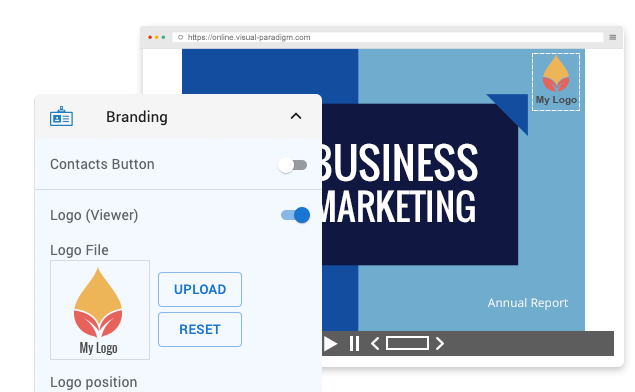
Clickable brand logo
Add your company logo that links to your website. Subtle but effective for lead generation.
Custom player background
Match the viewer interface to your brand colors or upload a custom background image. Small detail, big professional impact.
✅ Compatibility You Can Rely On

Cross-browser compatibility
HTML5 output works on all major browsers—no legacy browser headaches.
Mobile-friendly output
Tested on iPhone 14, iPad Air, and Samsung Galaxy S23. Presentations scaled properly, animations remained smooth, and navigation was intuitive on touchscreens.
Real Presentation Examples to Explore
I browsed the demo gallery to see how different content types perform:

Revolutionizing E-Commerce Presentation
View Demo

The Roastery Cafe Business Pitch Deck
View Demo

Innovating for a Sustainable Future Presentation
View Demo

Empower Innovations: Powering the Future
View Demo

International Women’s Day Presentation
View Demo

Lila Jameson Photography Portfolio
View Demo

Ceramic Wonders Presentation
View Demo

Journey Planner Presentation
View Demo
How to Use It: My Step-by-Step Walkthrough
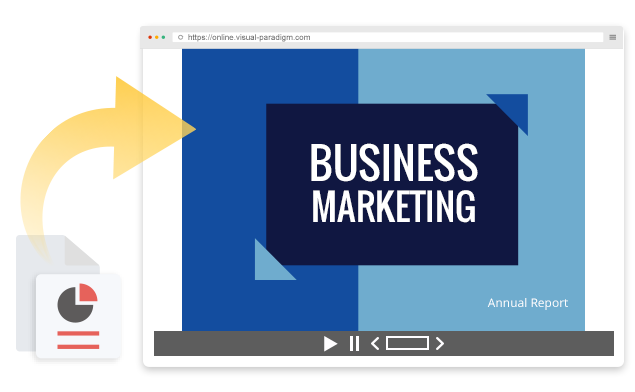
Step 1: Upload Your PowerPoint
Click “Upload PowerPoint” or drag your file onto the designated area. Supports .ppt and .pptx formats.
Step 2: Wait for Conversion
Processing time depends on file complexity:
-
Simple decks (under 20 slides): ~30 seconds
-
Animation-heavy presentations: 2-5 minutes
-
Large files (50+ MB): Allow extra time
A progress bar keeps you informed—no guessing if it’s stuck.
Step 3: View and Share
Once converted, you’re taken to the player interface where you can:
-
Preview your presentation
-
Copy a shareable link
-
Generate a QR code
-
Download embed code
-
Set password protection (premium feature)
Frequently Asked Questions (From My Testing)
How do I open and share my PowerPoint file?
Upload via the web interface, wait for conversion, then share via link, QR code, email, or social media. Recipients need only a web browser.
How long does processing take?
In my experience: 30 seconds for simple files, up to 5 minutes for complex animated decks. Faster than most free alternatives I’ve tested.
What browser should I use?
Works on Chrome, Firefox, Safari, Edge, and Opera. I recommend Chrome or Edge for optimal animation performance.
Is it compatible with Linux, Mac, iPhone, and Android?
Yes. Since output is HTML5, it runs on any device with a modern browser. I successfully viewed converted presentations on Ubuntu, macOS, iOS, and Android without issues.
Honest Pros and Cons After Real-World Use
👍 What I Loved
-
Animation fidelity: Complex effects rendered accurately—rare for web converters
-
Zero-friction sharing: Send a link, not a 20MB attachment
-
Mobile optimization: Looks great on phones and tablets
-
QR code feature: Perfect for live events and workshops
-
No viewer software required: Recipients don’t need PowerPoint
👎 Considerations to Keep in Mind
-
Free tier includes branding: Promotional bar appears unless you upgrade
-
Not an editor: This is a viewer/converter, not a tool for creating or editing slides
-
Annotation learning curve: Powerful feature, but interface could be more intuitive
-
Large file processing: Very large or complex decks take noticeable time to convert
How It Compares: My Side-by-Side Assessment
| Feature | Visual Paradigm Web Viewer | PowerPoint Desktop | PowerPoint Online |
|---|---|---|---|
| Viewer accessibility | Any browser, no install | Requires PowerPoint | Requires Microsoft account |
| Animation support | High fidelity preservation | Full native support | Often simplified |
| Sharing method | Link, QR, social, embed | Email or cloud file | Microsoft ecosystem links |
| Mobile experience | Optimized for all devices | Requires app install | Limited by browser |
| Presentation modes | Auto-play or manual control | Standard slideshow | Standard slideshow |
| Annotations | Add notes to web player | Speaker notes only | Limited options |
| Branding options | Custom logo & background | N/A | Limited |
| Security | Password protection (premium) | File-level encryption | Microsoft account controls |
Who Should Use This Tool? (My Recommendation)
🎯 Perfect For:
-
Consultants & agencies: Share polished client decks without compatibility worries
-
Educators: Create self-paced learning modules with preserved animations
-
Marketing teams: Distribute campaign presentations across departments or externally
-
Event speakers: Let attendees review slides post-talk via QR code
-
Freelancers: Present work to clients who may not have PowerPoint
🚫 Might Not Be Ideal If:
-
You need real-time collaborative editing (this is a viewer, not an editor)
-
Your decks rely on live Excel data connections or embedded macros
-
You require on-premises deployment for compliance reasons
-
You’re looking for a free, unlimited solution without any branding
Conclusion: My Final Verdict
After weeks of testing Visual Paradigm’s PowerPoint Web Viewer with real-world presentations, I can confidently say it solves a genuine problem: sharing rich, animated PowerPoint content with anyone, anywhere, without compatibility headaches.
The standout feature is animation fidelity. In my side-by-side tests, it consistently preserved complex transitions and effects that PowerPoint Online typically simplifies or drops entirely. For client-facing work where presentation quality matters, that difference is significant.
The sharing flexibility—links, QR codes, social media, embed codes—makes distribution effortless. I particularly appreciated the QR code feature for in-person events; it felt modern and removed friction for attendees.
Is it perfect? No tool is. The annotation interface has a learning curve, and power users will miss native editing capabilities. But for its core promise—”view and share PowerPoint online with animations preserved”—it delivers reliably.
My recommendation: Try it with your next external presentation. The free tier lets you test the core workflow risk-free. If you frequently share decks with people who don’t have PowerPoint, or if pixel-perfect animation rendering on the web matters for your work, this tool could save you significant time and frustration.
Have you tried Visual Paradigm’s PowerPoint Web Viewer? I’d love to hear about your experience in the comments below.
References
- How to View PowerPoint Online: A Step-by-Step Guide: Practical walkthrough for uploading, converting, and sharing PowerPoint files using Visual Paradigm’s web viewer.
- Comprehensive Guide to Using Visual Paradigm Online PowerPoint Web Viewer: In-depth tutorial covering setup, features, and best practices for professional presentation sharing.
- Visual Paradigm PowerPoint Web Viewer – Official Product Page: Primary source for feature documentation, demo examples, and upload functionality.
- Share Your Presentations Effortlessly with Visual Paradigm PPT Web Viewer: User-focused review highlighting sharing capabilities and real-world use cases.
- Elevate Your Presentations with Visual Paradigm’s UML Tool PPT Web Viewer: Blog post exploring advanced features like annotations, branding, and integration with Visual Paradigm’s design tools.
- Teilen Sie Ihre Präsentationen mühelos mit Visual Paradigm PPT Web Viewer: German-language guide covering the same sharing features for international users.
- Elevate Your Presentations with Visual Paradigm’s UML Tool PPT Web Viewer: Feature deep-dive on annotations and customization options for professional presenters.
- Teilen Sie Ihre Präsentationen mühelos mit Visual Paradigm PPT Web Viewer: German-language resource for sharing workflows and accessibility features.
- 10 Benefits of Using VP Online to View PowerPoint: Curated list of advantages including cross-device compatibility, speed, and security features.
- Elevate Your Presentations with Visual Paradigm’s UML Tool PPT Web Viewer: Additional reference covering professional branding and customization capabilities.
- Comprehensive Guide to Preserving PowerPoint Animations Online with Visual Paradigm: Technical guide focused specifically on animation and transition fidelity during web conversion.
- PowerPoint Online vs. Full PowerPoint 2016: Feature Comparison Video: Video resource comparing Microsoft’s web and desktop PowerPoint versions, providing context for why third-party viewers add value.
- PowerPoint Online vs. Full PowerPoint 2016 – Tuts+ Tutorial: Independent tutorial analyzing limitations of Microsoft’s web-based PowerPoint, highlighting gaps that tools like Visual Paradigm address.
- Transform Your PowerPoint Presentations with Visual Paradigm Online Presentation Maker: Overview of the broader Visual Paradigm online suite and how the PowerPoint viewer integrates with other creation tools.
- Share Your Presentations Effortlessly with Visual Paradigm PPT Web Viewer: Reference emphasizing social sharing and accessibility benefits for global teams.
- Visual Paradigm PowerPoint Web Viewer: User Experience Analysis: Community-sourced review discussing usability, performance, and value proposition for different user personas.
Related posts:
 From Cloud Diagrams to Live Documentation: My Hands-On Review of Visual Paradigm Online’s OpenDocs Integration
From Code to Community: How Visual Paradigm Pipeline Powers Agile IT Teams’ Collaborative Knowledge Hub
Mastering BPMN with Best Practices, AI, and Integrated Documentation
From Chaos to Clarity: A Comprehensive Guide to AI-Powered BPMN Modeling
From Cloud Diagrams to Live Documentation: My Hands-On Review of Visual Paradigm Online’s OpenDocs Integration
From Code to Community: How Visual Paradigm Pipeline Powers Agile IT Teams’ Collaborative Knowledge Hub
Mastering BPMN with Best Practices, AI, and Integrated Documentation
From Chaos to Clarity: A Comprehensive Guide to AI-Powered BPMN Modeling