


Introduction
As someone who has spent countless hours juggling between diagramming tools and documentation platforms, I was intrigued when I heard about Visual Paradigm’s latest integration feature. The promise of seamlessly exporting diagrams from Visual Paradigm Desktop directly to OpenDocs sounded too good to be true. After putting this feature through its paces over the past few weeks, I’m ready to share my honest experience with what could be a game-changer for teams managing complex modeling projects. If you’ve ever struggled with the tedious process of exporting, uploading, and re-updating diagrams across different platforms, this review is for you.
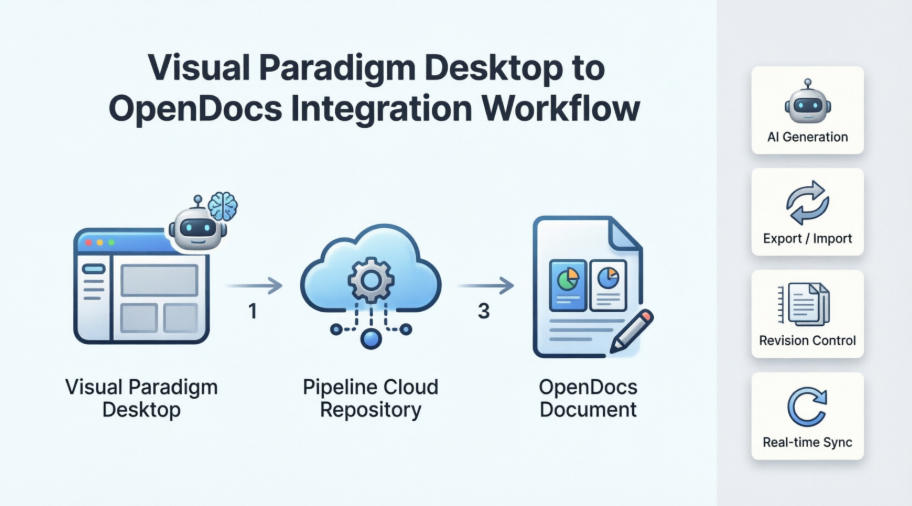
The Ultimate “Concept-to-Docs” Workflow: A User’s Perspective
Visual Paradigm has introduced a powerful integration between their Desktop application and OpenDocs platform, and from my testing, it genuinely bridges the gap between modeling and documentation. The feature allows users to move from initial concepts to comprehensive, shared knowledge bases without the traditional friction of manually exporting and uploading image files.
During my evaluation, I tested the workflow by using the AI diagram generation in Visual Paradigm Desktop to quickly visualize a business process. After refining the model using the professional tools, I sent it directly to OpenDocs via the Pipeline to add context and descriptions for stakeholders.
Important Note: This integration requires Visual Paradigm Professional Edition or higher. If you’re using a lower tier, you won’t have access to this feature.
Ready to test it yourself? You can access OpenDocs directly or download the latest Visual Paradigm Desktop.
What I Found: Understanding Visual Paradigm OpenDocs
OpenDocs impressed me as a specialized knowledge and document management platform designed for modern teams. What sets it apart from conventional documentation tools is its direct integration with a robust diagram editor. This means you can insert diagrams into your pages and re-edit them later without leaving the document—a feature that saved me significant time during my testing.
By supporting exports from Visual Paradigm Desktop, OpenDocs effectively becomes a central hub for professional modeling and documentation needs. In my experience, this eliminated the need to switch between multiple applications.
The Pipeline: My Experience with the Artifact Repository
The Pipeline serves as a secure, centralized repository for “artifacts”—the assets you create across the Visual Paradigm ecosystem. Since Visual Paradigm’s tools cover everything from enterprise architecture to agile development, I found the Pipeline to be an essential space for holding and transferring these artifacts.
What I appreciated most was how it allows the output from one tool, like an AI-generated UML diagram, to become the input for another, such as a technical manual in OpenDocs. This interoperability is where the real value lies.
Step-by-Step: How I Exported Diagrams to OpenDocs
Whether you create diagrams manually or use the AI generation tool, exporting to documentation is straightforward. Here’s my experience with the process:
-
In Visual Paradigm Desktop, I opened the diagram I wanted to send.
-
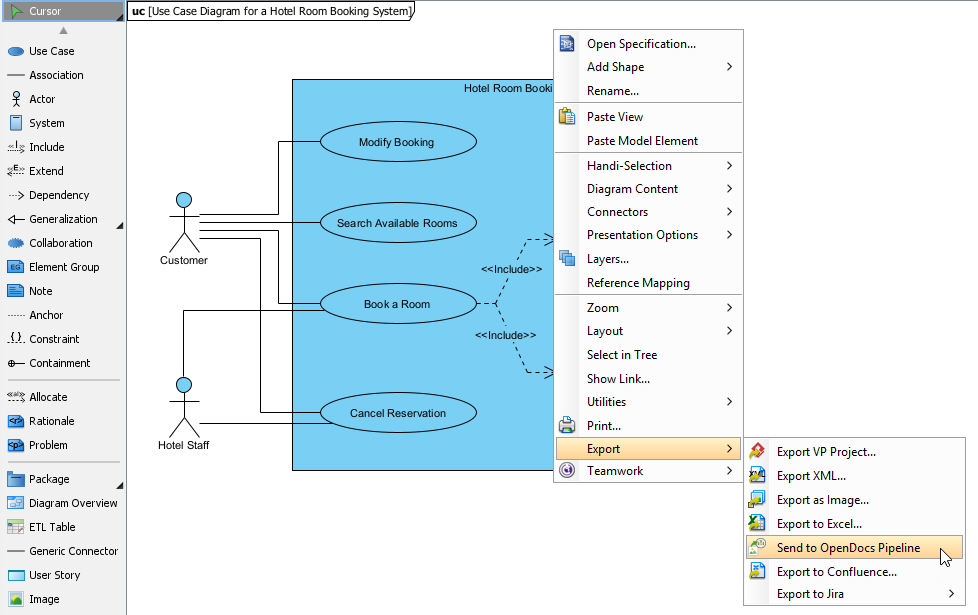
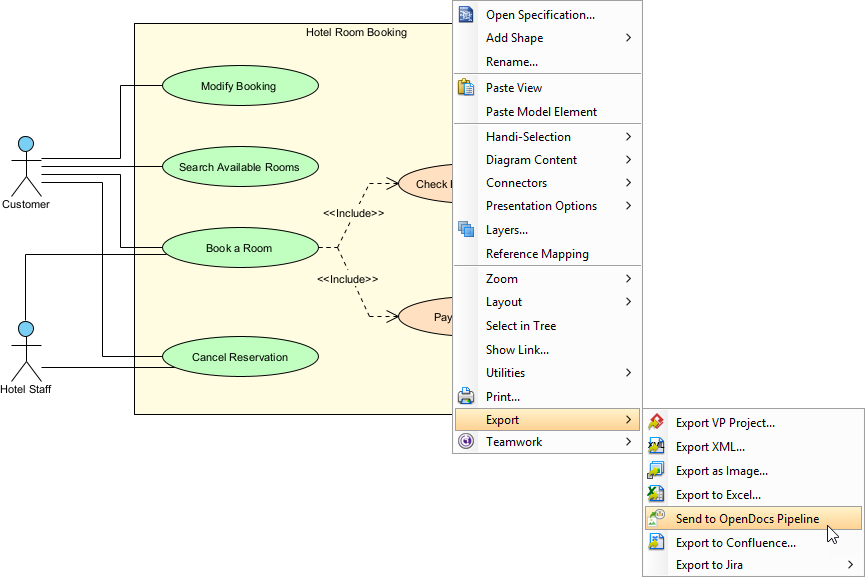
I right-clicked on the diagram and selected Export > Send to OpenDocs Pipeline.
-
When prompted, I saved my project by clicking OK.
-
(Optional) I entered a comment, which became visible in the Pipeline pane within OpenDocs to help identify the version or purpose of the artifact.
-
I confirmed the export to output my diagram to the cloud.
The entire process took less than a minute—significantly faster than my previous workflow of exporting images and manually uploading them.
Inserting Artifacts: My Documentation Workflow
Once your diagram is in the Pipeline, placing it in your knowledge base is simple. Here’s how I did it:
-
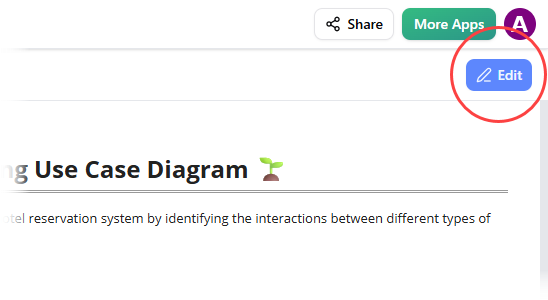
I opened a document page in OpenDocs and clicked Edit.
-
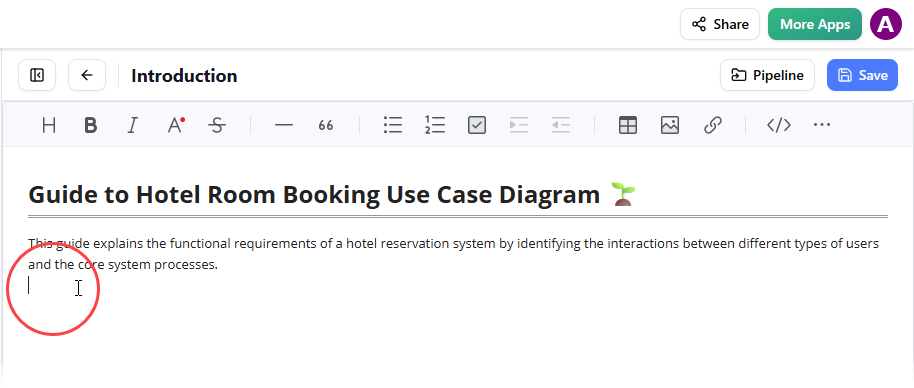
I clicked on the page where I wanted to insert the diagram.
-
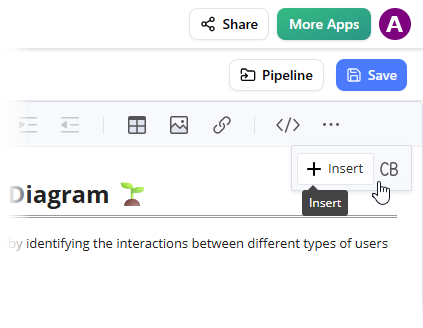
On the toolbar, I clicked Insert.
-
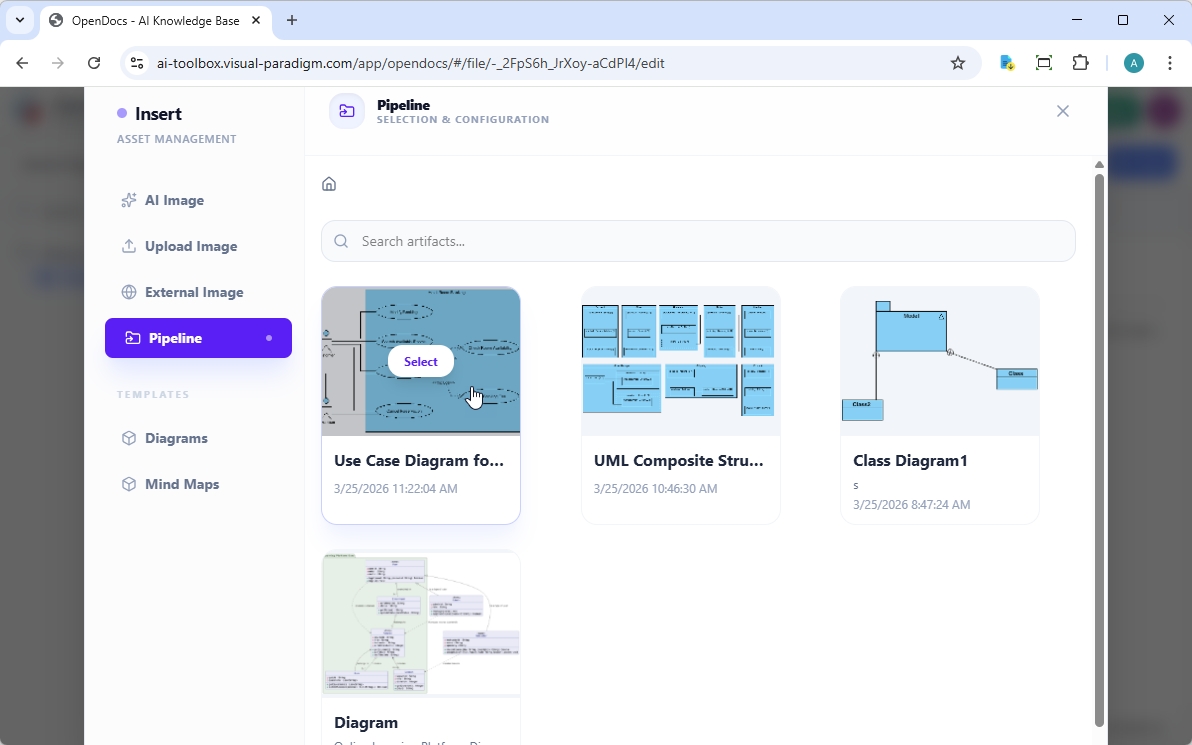
In the Insert window, I selected Pipeline from the left-hand sidebar. My sent diagrams appeared here.
-
I clicked on the diagram to insert the image directly at my cursor position.
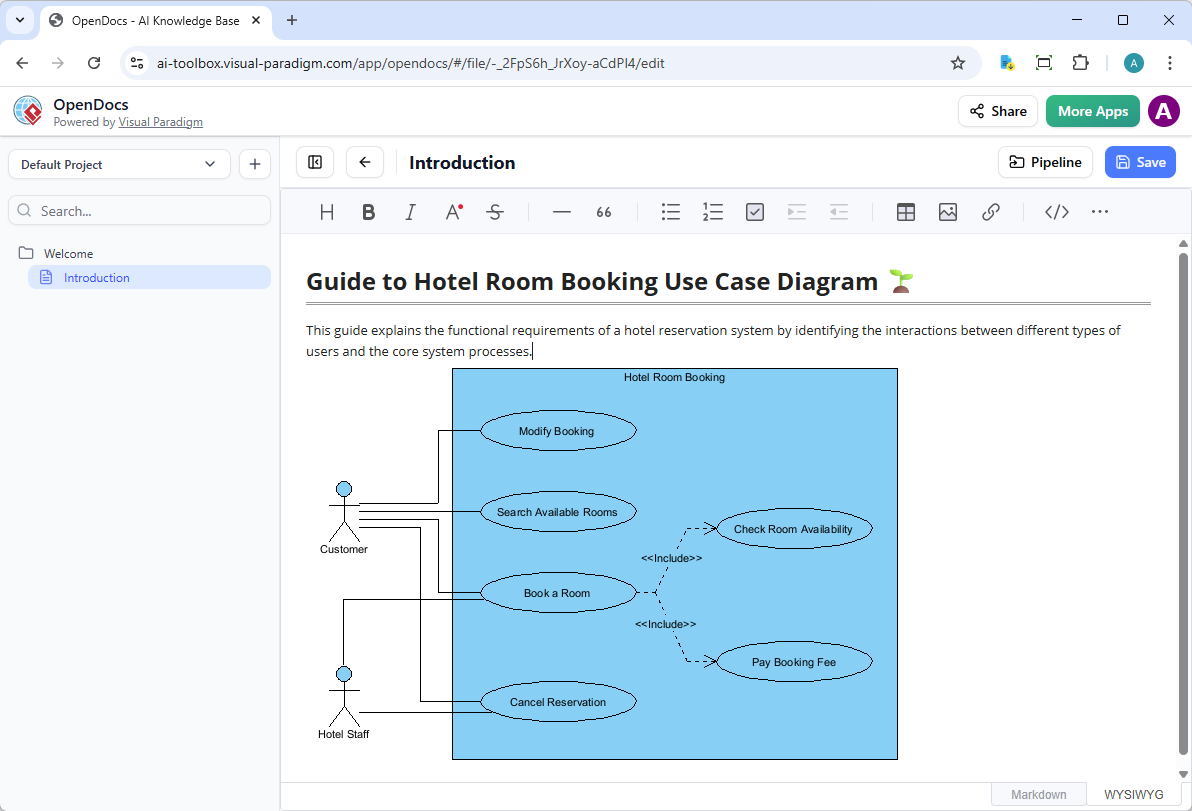
The insertion process was intuitive and required no technical expertise.
Keeping Documentation Current: My Experience with Updates
One of the most powerful aspects of this integration, in my testing, was the ability to update documentation as models evolved. When I needed to make changes to a diagram already in OpenDocs, I followed these steps:
1. Opening the Source Diagram
In OpenDocs, I clicked the Edit icon at the top right of the diagram image to open the Edit Diagram window.
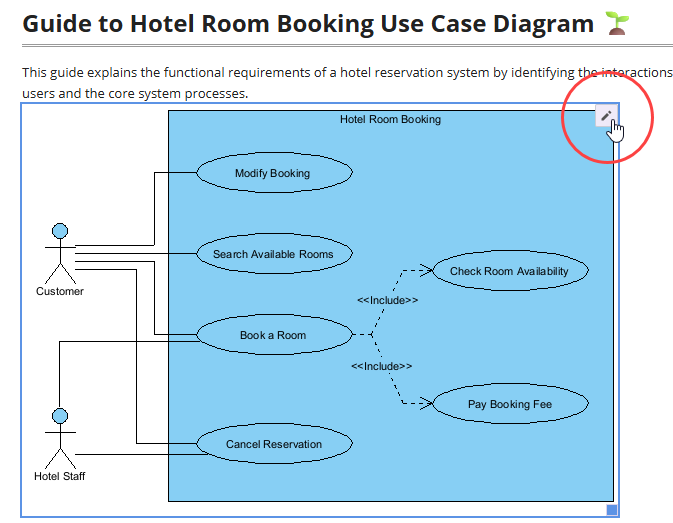
I copied the diagram link provided, then in Visual Paradigm Desktop, went to Project > Open, pasted the link, and the software opened the source model for me. (Alternatively, if you already have the project open, you can skip this step.)
2. Editing and Re-sending
I modified my diagram in Visual Paradigm Desktop. Once finished, I right-clicked the diagram and selected Export > Send to OpenDocs Pipeline again. You can also simply commit your changes to VP Online, which automatically creates a new revision of the artifact.
3. Swapping to the Latest Revision
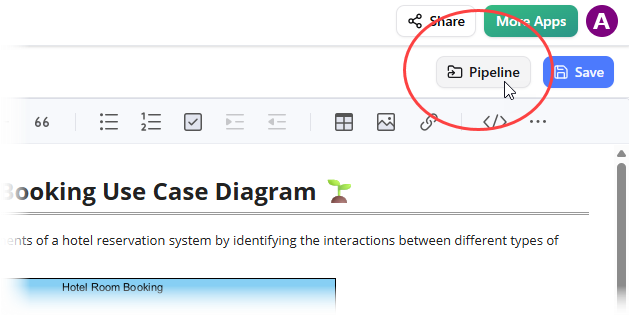
Back in the OpenDocs editor, I clicked Pipeline at the top right.
I saw the artifacts currently used on that page. I selected the diagram to see a list of revisions and simply clicked on the latest revision to instantly swap the old diagram for the updated version.
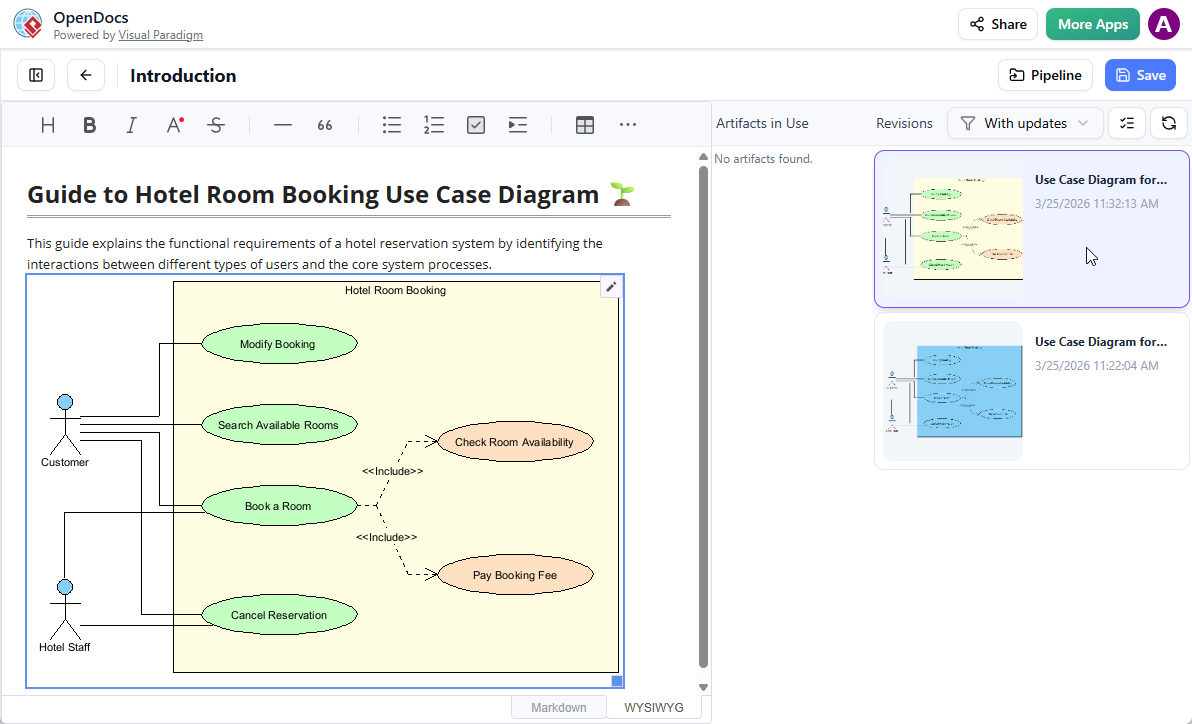
This revision control feature was particularly valuable for maintaining accurate documentation without creating duplicate files.
Related Features I Explored
During my review, I also looked at:
Bonus: Testing the AI ERD Tool
While reviewing the OpenDocs integration, I also explored Visual Paradigm’s AI ERD tool, a generative modeling assistant that transforms natural language descriptions into professional Entity Relationship Diagrams. It’s integrated across the Visual Paradigm ecosystem, including OpenDocs, VP Online, and VP Desktop. [1, 2, 3, 4, 5]
Key Capabilities I Tested
-
Text-to-ERD Generation: The tool generated entities, attributes, and relationships from my natural language descriptions.
-
Intelligent Optimization: It assisted in normalizing schemas with explanatory feedback archimetric.com.
-
Relationship Inference: The system detected cardinalities and automatically generated foreign keys archimetric.com.
-
SQL Simulation: It provided a playground for testing generated schemas archimetric.com. [1, 3, 6, 7]
How I Used the AI ERD Tool
-
In OpenDocs: I navigated to Insert > Diagrams > Entity Relationship Diagram and chose the AI creation option archimetric.com.
-
In Desktop or Online: I selected AI Diagram from the Tools menu. [1, 8, 9, 10]
Availability
This feature is available to users with a Visual Paradigm Online (Combo Edition) or Visual Paradigm (Professional Edition) license or higher. [1, 9]
Conclusion
After extensive testing, I can confidently say that Visual Paradigm’s Desktop-to-OpenDocs integration delivers on its promise of streamlining the documentation workflow. The ability to export diagrams directly via the Pipeline, combined with the revision control system, addresses one of the most painful aspects of technical documentation: keeping diagrams synchronized with evolving models.
The integration is particularly valuable for teams working on complex projects where diagrams frequently change. The time saved from not having to manually export, upload, and replace images adds up quickly. Additionally, the AI ERD tool demonstrates Visual Paradigm’s commitment to leveraging AI for practical productivity gains.
However, the Professional Edition requirement means smaller teams or individual users on lower tiers won’t benefit from this feature. For those who can access it, though, this integration represents a meaningful step forward in bridging the gap between visual modeling and knowledge management.
My verdict: If you’re already using Visual Paradigm Professional for modeling and need robust documentation capabilities, this integration is worth exploring. It’s not revolutionary, but it’s a solid, well-executed feature that solves real workflow problems.
References
-
OpenDocs Entity Relationship Diagram (ERD) AI Generation: Official release announcement for AI-powered ERD generation in OpenDocs
-
Getting Started with AI-Powered ERD Creation in OpenDocs: A Complete Beginner’s Guide: Comprehensive beginner’s guide to using AI for ERD creation in OpenDocs
-
Complete Guide to Database Design with Visual Paradigm ERD Tools: In-depth guide covering database design features and AI optimization capabilities
-
How to Access AI ERD Tools: Specific instructions for accessing AI ERD tools across different Visual Paradigm platforms
-
Visual Paradigm OpenDocs: The Complete Guide to AI-Powered Knowledge Management and Diagram Generation: Comprehensive overview of OpenDocs features and AI integration
-
Visual Paradigm ERD Tool Solution: Official product page for Visual Paradigm’s ERD tool solution
-
Database Design with ERD Tools Features: Official documentation of database design features and capabilities
-
OpenDocs Entity Relationship Diagram (ERD) AI Generation Release: Release notes for ERD AI generation feature
-
AI Diagram Generator Now Supports 13 Diagram Types: Announcement of expanded AI diagram generation capabilities
-
Visual Paradigm AI Diagram Generator Tutorial: Video tutorial demonstrating AI diagram generation features
Related posts:
 Case Study: Transforming Hospital Database Design with AI-Powered Modeling Tools
 Your All-in-One AI Diagramming Solution: Create Professional Mind Maps in Seconds
 AI State Diagram Generator: A Skeptic’s Guide to Seeing It Actually Work
 Visual Paradigm C4 Model: The Absolute Beginner’s Guide to AI-Powered Software Architecture