
Automate Kanban with VPasCode and OpenDocs: A Synchronized Workflow
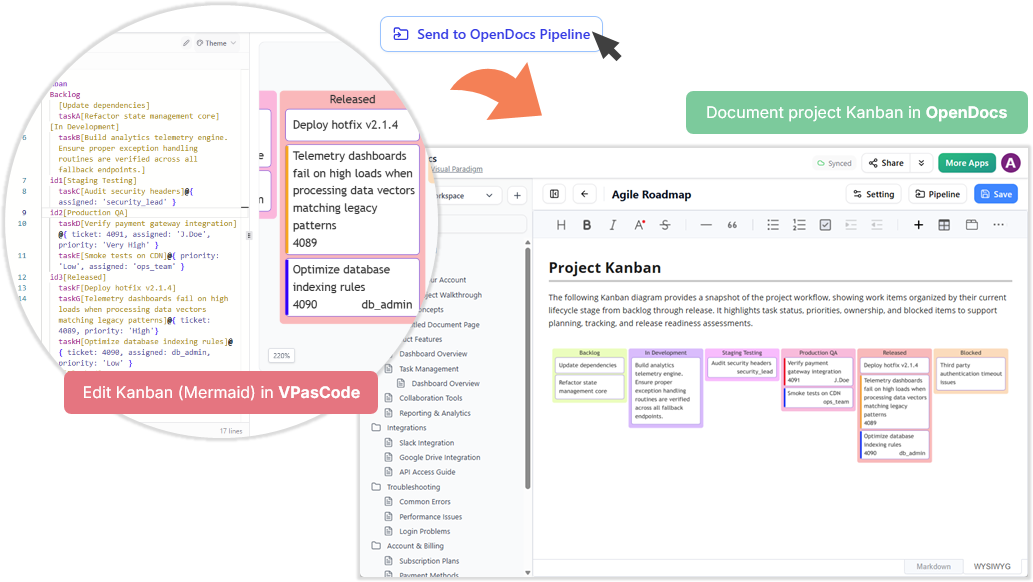
In the realm of modern software development, bridging the gap between raw code logic and high-level project management is often a manual and error-prone process. Teams frequently find themselves maintaining two separate realities: the technical details living in code repositories and the project status living in static diagrams or disconnected wikis.
This tutorial explores a streamlined workflow using Visual Paradigm‘s VPasCode and OpenDocs. We will demonstrate how to define a project Kanban board using Mermaid syntax within the VPasCode editor, and how to instantly publish this visualization to the OpenDocs Pipeline to create a living, synchronized project document.
Understanding the Architecture: VPasCode and OpenDocs
The power of this workflow lies in the separation of concerns. VPasCode serves as the authoring environment where technical and product teams can use code-like syntax to describe visual models. OpenDocs acts as the centralized documentation hub, aggregating these models into a cohesive knowledge base.
By using VPasCode to generate Kanban diagrams, you are essentially treating your project roadmap as “code.” This allows for:
- Version Control: Changes to the Kanban board can be tracked in Git.
- Template Reuse: Standard workflows can be defined as snippets.
- Automation: The “Send to OpenDocs Pipeline” feature automates the rendering and publishing process.
Step 1: Defining the Kanban Board in VPasCode
To begin, we must define the structure of our Kanban board. In Visual Paradigm, this is done using the kanban diagram type. The syntax allows us to define columns (stages of the workflow) and cards (work items) with specific properties.
Let’s analyze a sample definition that maps a typical software release cycle:
kanban
    column Backlog
        task[Update dependencies]
        task[Refactor state management]
        task[Build analytics engine]

    column In Development
        task[Verify payment gateway]
        task[Audit security headers]

    column Staging Testing
        task[Telemetry dashboards fail on high loads]
        task[Smoke tests on CDN]

    column Released
        task[Deploy hotfix v2.1.4]
        task[Optimize database indexing]
Key Concepts in the Syntax:
- Column Definition:
column [Name]creates the vertical swimlanes of the board. In our example, we have “Backlog,” “In Development,” “Staging Testing,” and “Released.” - Task Definition:
task[Text]creates the individual cards. You can append metadata like ticket IDs or priorities within the text or via specific attributes depending on the parser version. - Grouping: The code is structured to visually group tasks under their respective stages, which VPasCode renders into the grid layout.
Step 2: Enhancing with Real-World Context
While the basic syntax creates the structure, a production-ready Kanban board requires context. In the VPasCode editor, you can add detailed descriptions, assign owners, and set priorities directly within the task definitions. This is where the “technical” aspect of the model shines.
Consider the following expanded snippet used in the tutorial context:
kanban
    column Released
        task[Deploy hotfix v2.1.4] #4089
        task[Telemetry dashboards fail on high loads when processing data vectors matching legacy patterns] #4089
        task[Optimize database indexing rules] #4090 db_admin
Notice how we can embed ticket numbers (e.g., #4089) and assignees (e.g., db_admin) directly into the Mermaid string. VPasCode parses these elements and renders them into the card UI, allowing the diagram to function as a live project tracker.
Step 3: The OpenDocs Pipeline Integration
The final and most critical step is synchronizing this work. Once the Mermaid code is written and validated in VPasCode, the workflow shifts to documentation.
- Locate the Pipeline Action: In the Visual Paradigm interface, locate the Pipeline toolbar or the specific “Send to OpenDocs Pipeline” button.
- Execute the Send: Clicking this action triggers the build process. It does not simply copy a static image; it packages the Mermaid source code.
- Render in OpenDocs: The OpenDocs system receives the code and renders it into the Project Kanban document. This ensures that the diagram on the web page is always in sync with the latest code in your editor.
This integration means that if you update a task status in VPasCode and push to the pipeline, the OpenDocs dashboard updates automatically. There is no need to manually redraw diagrams or export screenshots.
Conclusion
By leveraging VPasCode for authoring and OpenDocs for delivery, organizations can achieve a “Single Source of Truth” for their project documentation. The Kanban diagram transforms from a static image into a dynamic, code-driven artifact that evolves with the project.
This approach eliminates the “documentation bottleneck” mentioned in the introduction, ensuring that technical architecture and written requirements remain connected in a centralized, web-based workspace.